
ESP32 CYD с ESP-NOW: создание многосенсорного приемника данных с сенсорным дисплеем.
Imagine having multiple ESP32 sensor nodes scattered around your home or workshop, all wirelessly sending temperature and humidity data to a single, sleek touchscreen display that shows everything in real-time. With the Дешевый желтый дисплей ESP32 (CYD) и ESP-NOW communication protocol, you can build exactly that—no Wi-Fi router required.
In this project, you’ll learn how to receive and display data from multiple ESP32 sender boards на вашем CYD, organizing the information in separate tabs for each device. This is the perfect foundation for creating wireless environmental monitoring systems, remote sensors networks, or any multi-point data logging project.
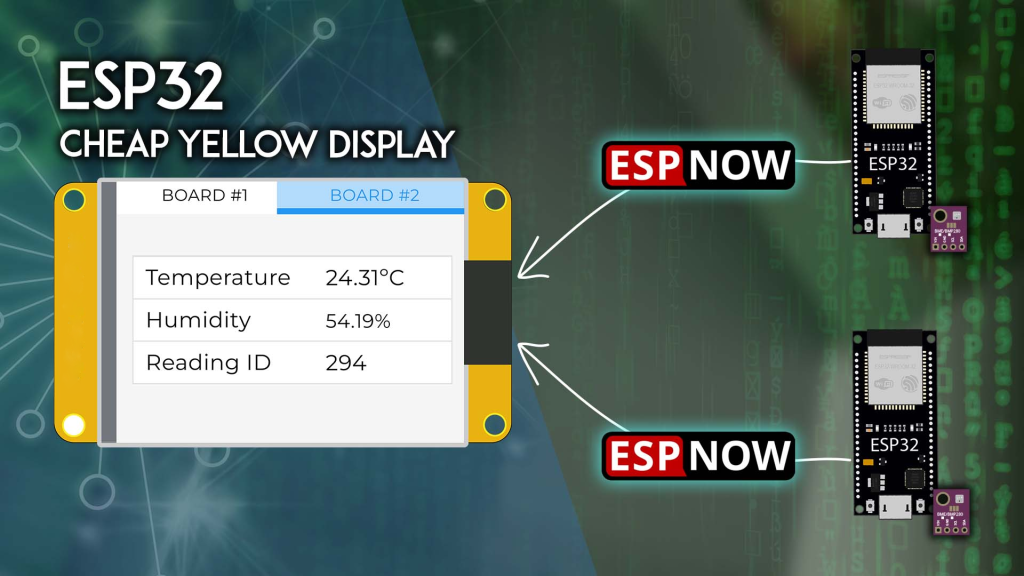
Project Overview: How It Works
Before diving into code, let’s understand the system architecture:
┌─────────────────┐     ┌─────────────────────────────────────────┐
│  ESP32 Sender 1 │────▶│                                         │
│  (with BME280)  │     │            ESP32 CYD                    │
└─────────────────┘     │         (ESP-NOW Receiver)              │
                        │  ┌─────────────────────────────────┐    │
┌─────────────────┐     │  │  Tab 1: Board 1 Data            │    │
│  ESP32 Sender 2 │────▶│  │  Temperature: 23.5°C            │    │
│  (with BME280)  │     │  │  Humidity:     65%              │    │
└─────────────────┘     │  ├─────────────────────────────────┤    │
                        │  │  Tab 2: Board 2 Data            │    │
                        │  │  Temperature: 24.1°C            │    │
                        │  │  Humidity:     58%              │    │
                        │  └─────────────────────────────────┘    │
                        └─────────────────────────────────────────┘
-
Two ESP32 sender boards each read data from a BME280 environmental sensor
-
They send this data via ESP-NOW—a connectionless protocol that requires no Wi-Fi network
-
Он ESP32 CYD board acts as the receiver, listening for incoming data packets
-
Он CYD displays the data in a tabbed interface, with separate tables for each sender
-
Data updates automatically whenever new readings arrive
ESP-NOW is ideal for this application because it’s fast, low-power, and works even when Wi-Fi networks are unavailable. Each sender can be placed anywhere within range (typically 30-50 meters indoors) and send data directly to the CYD.
What You’ll Need: Complete Parts List
To build this project, gather the following components:
| Компонент | Количество | Цель |
|---|---|---|
| ESP32 Cheap Yellow Display (CYD) | 1 | Main receiver with touchscreen (Check price) |
| Плата разработки ESP32 (any model) | 2 | Sender nodes (ESP32 options) |
| BME280 sensor module | 2 | Measures temperature & humidity (BME280 sensors) |
| Jumper wires | As needed | For connecting sensors to sender boards |
| USB cables | 3 | For programming all boards |
👉 Find all these parts at the best prices here
Prerequisites: Setting Up Your Environment
Before starting, ensure you’ve completed these essential setup steps. Missing any will cause compilation errors.
1. Плата ESP32 Support in Arduino IDE
If you haven’t already, install плата ESP32 support in Arduino IDE. Follow our detailed guide: Installing ESP32 Board in Arduino IDE.
2. Familiarize Yourself with the CYD
Он Дешевый желтый дисплей ESP32 (ESP32-2432S028R) is the heart of this project. If this is your first time using it, complete our Getting Started with ESP32 CYD guide first. You’ll need to:
-
Install the TFT_eSPI library
-
Configure the
User_Setup.hfile correctly -
Test basic display and touch functionality
3. Install LVGL Library for the CYD
We’ll use LVGL (Light and Versatile Graphics Library) to create the tabbed interface. Follow our dedicated tutorial to install and configure LVGL for the CYD:
👉 LVGL with ESP32 Cheap Yellow Display
4. Install BME280 Libraries
For the sender boards, install the Adafruit BME280 library:
-
В среде разработки Arduino IDE перейдите в Sketch > Добавить библиотеку > Управление библиотеками
-
Искать “Adafruit BME280” and install the latest version
-
Install any required dependencies (Adafruit Bus IO, Adafruit Unified Sensor)
5. Understand ESP-NOW Basics
ESP-NOW is a proprietary protocol from Espressif that allows multiple devices to communicate without Wi-Fi. If you’re new to it, read our Getting Started with ESP-NOW tutorial.
Step 1: Get Your CYD Board’s MAC Address
ESP-NOW uses MAC addresses to identify devices. First, you need the MAC address of your CYD receiver so the sender boards know where to send data.
Upload this simple sketch to your CYD:
#включать <WiFi.h>
#включать <esp_wifi.h>

пустота readMacAddress() {
  uint8_t baseMac[6];
  esp_err_t ret = esp_wifi_get_mac(WIFI_IF_STA, baseMac);
  если (ret == ESP_OK) {
    Серийный номер.printf("CYD MAC Address: %02x:%02x:%02x:%02x:%02x:%02x\n",
                  baseMac[0], baseMac[1], baseMac[2],
                  baseMac[3], baseMac[4], baseMac[5]);
  } еще {
    Серийный номер.println("Failed to read MAC address");
  }
}

пустота настраивать() {
  Серийный номер.начинать(115200);
  Wi-Fi.mode(WIFI_STA);
  Wi-Fi.STA.начинать();
  задерживать(100);
  readMacAddress();
}

пустота петля() {}
After uploading, open the Serial Monitor at 115200 бод and press the reset button. You’ll see output like:
CYD MAC Address: 24:dc:c3:49:6a:14
Write this address down—you’ll need it for each sender board.
Step 2: Prepare the Sender Boards
Now, let’s set up the two Платы ESP32 that will send sensor data. Each board gets a unique ID and a BME280 sensor.
Wiring the BME280 to ESP32
Connect the BME280 sensor to your ESP32 sender board using the default I2C pins:
| BME280 Pin | ESP32 Приколоть |
|---|---|
| ВЦК | 3,3 В |
| НД | НД |
| СКЛ | GPIO 22 |
| СДА | GPIO 21 |
(If your плата ESP32 uses different default I2C pins, adjust accordingly.)
Sender Board Code
Each sender board runs identical code, except for the BOARD_ID и receiver MAC address. Here’s the complete sender sketch:
/*********
  ESP32 ESP-NOW Sender with BME280
  Sends temperature and humidity to CYD receiver
  Complete project: https://RandomNerdTutorials.com/esp32-cyd-esp-now-receive-data/
*********/
#включать <esp_now.h>
#включать <WiFi.h>
#включать <Adafruit_BME280.h>
#включать <Adafruit_Sensor.h>

// IMPORTANT: Set unique ID for each sender (1, 2, 3...)
#определять BOARD_ID 1   // Change to 2 for second board

Adafruit_BME280 bme;

// REPLACE WITH YOUR CYD'S MAC ADDRESS (from Step 1)
uint8_t broadcastAddress[] = {0x24, 0xDC, 0xC3, 0x49, 0x6A, 0x14};

// Data structure (must match receiver)
typedef struct struct_message {
  инт id;
  плавать temp;
  плавать hum;
  инт readingId;
} struct_message;

struct_message myData;
без подписи длинный previousMillis = 0;
константа длинный interval = 10000;  // Send every 10 seconds
без подписи инт readingId = 0;

пустота initBME() {
  если (!бме.начинать(0x76)) {
    Серийный номер.println("BME280 not found! Check wiring.");
    пока (1);
  }
  Серийный номер.println("BME280 initialized");
}

плавать readTemperature() {
  возвращаться бме.readTemperature();
}

плавать readHumidity() {
  возвращаться бме.readHumidity();
}

esp_now_peer_info_t peerInfo;

пустота OnDataSent(константа uint8_t *mac_addr, esp_now_send_status_t status) {
  Серийный номер.печать("Send status: ");
  Серийный номер.println(статус == ESP_NOW_SEND_SUCCESS ? "Success" : "Fail");
}

пустота настраивать() {
  Серийный номер.начинать(115200);
  initBME();

  Wi-Fi.mode(WIFI_STA);

  если (esp_now_init() != ESP_OK) {
    Серийный номер.println("ESP-NOW init failed");
    возвращаться;
  }

  esp_now_register_send_cb(OnDataSent);

  memcpy(peerInfo.peer_addr, broadcastAddress, 6);
  peerInfo.канал = 0;
  peerInfo.encrypt = ЛОЖЬ;

  если (esp_now_add_peer(&peerInfo) != ESP_OK) {
    Серийный номер.println("Failed to add peer");
    возвращаться;
  }
  Серийный номер.println("ESP-NOW ready. Sending data every 10 seconds...");
}

пустота петля() {
  без подписи длинный currentMillis = миллис();
  если (currentMillis - previousMillis >= interval) {
    previousMillis = currentMillis;

    myData.id = BOARD_ID;
    myData.temp = readTemperature();
    myData.hum = readHumidity();
    myData.readingId = readingId++;

    esp_err_t result = esp_now_send(broadcastAddress, (uint8_t *)&myData, sizeof(myData));

    Серийный номер.печать("Sending [ID:");
    Серийный номер.печать(myData.id);
    Серийный номер.печать("] Temp:");
    Серийный номер.печать(myData.temp);
    Серийный номер.печать("C Hum:");
    Серийный номер.печать(myData.hum);
    Серийный номер.печать("% Reading:");
    Серийный номер.печать(myData.readingId);
    Серийный номер.печать(" - ");
    Серийный номер.println(result == ESP_OK ? "OK" : "FAILED");
  }
}
Important modifications for each sender:
-
Board 1: Set
#define BOARD_ID 1 -
Board 2: Set
#define BOARD_ID 2 -
Both: Replace the
broadcastAddressarray with your CYD‘s actual MAC address
Upload this code to both ESP32 sender boards after wiring the BME280 sensors.
Step 3: The CYD Receiver Code (LVGL GUI)
Now for the star of the show—the CYD receiver that displays all incoming data in a beautiful tabbed interface. This code uses LVGL 9.2 to create two tabs (one for each sender) with tables showing temperature and humidity.
Setting Up LVGL for CYD
Before uploading, ensure you’ve:
-
Installed LVGL version 9.2 via Library Manager
-
Placed the correct
lv_conf.hfile in your Arduino libraries folder (as per the LVGL CYD tutorial) -
Configured the TFT_eSPI library with the proper
User_Setup.h
Complete CYD Receiver Code
/*********
  ESP32 CYD ESP-NOW Receiver with LVGL Tabbed Display
  Receives data from multiple ESP32 senders and displays in tabs
  Complete project: https://RandomNerdTutorials.com/esp32-cyd-esp-now-receive-data/
*********/
#включать <esp_now.h>
#включать <WiFi.h>
#включать <lvgl.h>
#включать <TFT_eSPI.h>
#включать <XPT2046_Touchscreen.h>

// Touchscreen pins
#определять XPT2046_IRQ 36
#определять XPT2046_MOSI 32
#определять XPT2046_MISO 39
#определять XPT2046_CLK 25
#определять XPT2046_CS 33

Сенсорный экран SPIClass SPI = SPIClass(ВСПИ);
XPT2046_Сенсорный экран сенсорный экран(XPT2046_CS, XPT2046_IRQ);

#определять ШИРИНА_ЭКРАНА 240
#определять ВЫСОТА_ЭКРАНА 320

// LVGL draw buffer
#определять DRAW_BUF_SIZE (ШИРИНА_ЭКРАНА * ВЫСОТА_ЭКРАНА / 10 * (LV_COLOR_DEPTH / 8))
uint32_t draw_buf[DRAW_BUF_SIZE / 4];

// Data structure matching sender
typedef struct struct_message {
  инт id;
  плавать temp;
  плавать hum;
  инт readingId;
} struct_message;

struct_message incomingData;

// Store latest readings for each board (support up to 4 boards)
плавать latestTemp[4] = {0};
плавать latestHum[4] = {0};
инт latestReadingId[4] = {0};
bool dataReceived[4] = {ЛОЖЬ};

// LVGL objects
lv_obj_t *tabview;
lv_obj_t *tabs[4];        // Tab buttons
lv_obj_t *tab_containers[4]; // Tab content containers
lv_obj_t *temp_label[4];
lv_obj_t *hum_label[4];
lv_obj_t *reading_label[4];
lv_obj_t *status_label;

пустота log_print(lv_log_level_t level, константа чар *buf) {
  LV_UNUSED(level);
  Серийный номер.println(buf);
  Серийный номер.flush();
}

пустота touchscreen_read(lv_indev_t *indev, lv_indev_data_t *данные) {
  если (сенсорный экран.tirqTouched() && сенсорный экран.тронут()) {
    TS_Point p = сенсорный экран.получить точку();
    инт x = карта(p.x, 200, 3700, 1, ШИРИНА_ЭКРАНА);
    инт y = карта(p.y, 240, 3800, 1, ВЫСОТА_ЭКРАНА);
    данные->состояние = LV_INDEV_STATE_PRESSED;
    данные->точка.x = x;
    данные->точка.y = y;
  } еще {
    данные->состояние = LV_INDEV_STATE_RELEASED;
  }
}

// Callback when data is received
пустота OnDataRecv(константа uint8_t *mac, константа uint8_t *incomingData, инт len) {
  memcpy(&incomingData, incomingData, sizeof(incomingData));

  инт id = incomingData.id;
  если (id >= 1 && id <= 4) {
    latestTemp[id-1] = incomingData.temp;
    latestHum[id-1] = incomingData.hum;
    latestReadingId[id-1] = incomingData.readingId;
    dataReceived[id-1] = истинный;

    Серийный номер.printf("Received from Board %d: Temp=%.2fC Hum=%.2f%% (Reading %d)\n",
                  id, incomingData.temp, incomingData.hum, incomingData.readingId);

    // Update the display for this board's tab
    updateTabDisplay(id-1);
  }
}

пустота updateTabDisplay(инт boardIndex) {
  чар buf[32];

  если (temp_label[boardIndex]) {
    snprintf(buf, sizeof(buf), "Temp: %.1f°C", latestTemp[boardIndex]);
    lv_label_set_text(temp_label[boardIndex], buf);
  }

  если (hum_label[boardIndex]) {
    snprintf(buf, sizeof(buf), "Humidity: %.0f%%", latestHum[boardIndex]);
    lv_label_set_text(hum_label[boardIndex], buf);
  }

  если (reading_label[boardIndex]) {
    snprintf(buf, sizeof(buf), "Reading #%d", latestReadingId[boardIndex]);
    lv_label_set_text(reading_label[boardIndex], buf);
  }
}

пустота create_tab_ui() {
  // Create tab view
  tabview = lv_tabview_create(lv_scr_act());

  // Add tabs for up to 4 boards
  константа чар *tab_names[] = {"Board 1", "Board 2", "Board 3", "Board 4"};

  для (инт i = 0; i < 4; i++) {
    // Add tab
    tabs[i] = lv_tabview_add_tab(tabview, tab_names[i]);

    // Create content for this tab
    lv_obj_t *cont = tabs[i];

    // Temperature display
    temp_label[i] = lv_label_create(cont);
    lv_label_set_text(temp_label[i], "Temp: --°C");
    lv_obj_set_pos(temp_label[i], 20, 40);
    lv_obj_set_style_text_font(temp_label[i], &lv_font_montserrat_20, 0);

    // Humidity display
    hum_label[i] = lv_label_create(cont);
    lv_label_set_text(hum_label[i], "Humidity: --%");
    lv_obj_set_pos(hum_label[i], 20, 80);
    lv_obj_set_style_text_font(hum_label[i], &lv_font_montserrat_20, 0);

    // Reading ID
    reading_label[i] = lv_label_create(cont);
    lv_label_set_text(reading_label[i], "Reading #--");
    lv_obj_set_pos(reading_label[i], 20, 130);
    lv_obj_set_style_text_font(reading_label[i], &lv_font_montserrat_14, 0);

    // Status (last update)
    lv_obj_t *update_label = lv_label_create(cont);
    lv_label_set_text(update_label, dataReceived[i] ? "✓ Active" : "⏳ Waiting...");
    lv_obj_set_pos(update_label, 20, 180);
    lv_obj_set_style_text_color(update_label, dataReceived[i] ? lv_palette_main(LV_PALETTE_GREEN) : lv_palette_main(LV_PALETTE_GREY), 0);
  }
}

пустота настраивать() {
  Серийный номер.начинать(115200);
  Серийный номер.println("ESP32 CYD ESP-NOW Receiver Starting...");

  // Инициализация сенсорного экрана
  сенсорный экранSPI.начинать(XPT2046_CLK, XPT2046_MISO, XPT2046_MOSI, XPT2046_CS);
  сенсорный экран.начинать(сенсорный экранSPI);
  сенсорный экран.setRotation(1);

  // Initialize LVGL
  lv_init();
  lv_log_register_print_cb(log_print);

  // Инициализация дисплея
  lv_display_t *disp = lv_tft_espi_create(ШИРИНА_ЭКРАНА, ВЫСОТА_ЭКРАНА, draw_buf, sizeof(draw_buf));
  lv_display_set_rotation(disp, LV_DISPLAY_ROTATION_270);

  // Initialize touch input for LVGL
  lv_indev_t *indev = lv_indev_create();
  lv_indev_set_type(indev, LV_INDEV_TYPE_POINTER);
  lv_indev_set_read_cb(indev, touchscreen_read);

  // Create the tabbed UI
  create_tab_ui();

  // Set Wi-Fi to station mode
  Wi-Fi.mode(WIFI_STA);

  // Initialize ESP-NOW
  если (esp_now_init() != ESP_OK) {
    Серийный номер.println("ESP-NOW init failed");
    возвращаться;
  }

  // Register receive callback
  esp_now_register_recv_cb(esp_now_recv_cb_t(OnDataRecv));

  Серийный номер.println("ESP-NOW ready. Waiting for data...");
}

пустота петля() {
  lv_task_handler();
  lv_tick_inc(5);
  задерживать(5);
}
How the Receiver Code Works
-
ESP-NOW Setup: The CYD initializes ESP-NOW and registers a receive callback function
OnDataRecv()that triggers whenever data arrives. -
Data Parsing: Incoming data packets are parsed into the
struct_messagestructure, which contains board ID, temperature, humidity, and reading ID. -
Tabbed UI Creation: The
create_tab_ui()function builds four tabs (though we only use first two), each containing labels for temperature, humidity, and reading number. -
Dynamic Updates: When new data arrives,
updateTabDisplay()refreshes the labels for the corresponding board’s tab. -
Touch Support: The touchscreen is fully integrated—users can tap between tabs to view different boards’ data.
Testing Your Wireless Sensor Network
-
Power all three boards (two senders + CYD receiver) via USB
-
Открытый последовательный монитор on the CYD (115200 baud) to see received data
-
Watch the CYD screen—within 10 seconds, you should see:
-
Tab 1 showing data from Board 1
-
Tab 2 showing data from Board 2
-
Data updating every 10 seconds
-
-
Touch the screen to switch between tabs
If data doesn’t appear:
-
Verify MAC addresses in sender code
-
Check BME280 wiring on both senders
-
Ensure all boards are powered and within range (try moving closer)
Устранение распространенных проблем
| Проблема | Likely Solution |
|---|---|
| No data received | Double-check CYD MAC address in sender code |
| One board’s data missing | Verify BOARD_ID and wiring for that specific sender |
| Touch not working | Check touchscreen rotation setting (try 1 or 3) |
| Display shows “Waiting…” | Senders may be out of range; bring them closer |
| Compilation errors | Ensure all libraries are installed correctly (TFT_eSPI, LVGL 9.2, XPT2046_Touchscreen) |
Taking It Further: Project Enhancements
This foundation opens up many possibilities:
1. Add More Senders
Modify the code to support up to 4 boards. Simply assign BOARD_ID 3 and 4 to additional ESP32s with sensors.
2. Log Data to SD Card
Он CYD has a microSD slot. Add code to log all received readings with timestamps.
3. Add Alarms
Trigger an on-screen alert if temperature exceeds a threshold, or flash the RGB LED.
4. Create Historical Graphs
Use LVGL’s chart widget to display temperature trends over time.
5. Add Wi-Fi Upload
Forward received data to a web server or MQTT broker for remote monitoring.
Where to Buy Components
Ready to build your wireless sensor network? Here are the parts you’ll need:
-
ESP32 Cheap Yellow Display (CYD) – Main receiver unit
-
ESP32 Development Boards – For sender nodes (2 pieces)
-
BME280 Sensors – Temperature & humidity (2 pieces)
👉 Check all parts and best prices here
Заключение
You’ve just built a wireless multi-sensor monitoring system using ESP-NOW and the Дешевый желтый дисплей ESP32. This project demonstrates:
-
ESP-NOW communication for direct device-to-device data transfer
-
LVGL tabbed interfaces for organizing information from multiple sources
-
Real-time data updates on a touchscreen display
This same architecture can monitor temperatures in different rooms, track inventory levels, or collect data from remote weather stations—all displayed beautifully on your CYD.
Get your components today and start building your own wireless sensor network!
======================================