
Создавайте профессиональные графические интерфейсы на ESP32 CYD с помощью LVGL: полное руководство по настройке и проектам.
Are you looking to create sleek, responsive touchscreen interfaces for your IoT projects without complex display wiring? The Дешевый желтый дисплей ESP32 (CYD) combined with the LVGL graphics library offers the most cost-effective and powerful way to build graphical user interfaces (GUIs). This guide walks you through everything from hardware selection to running your first interactive LVGL project.
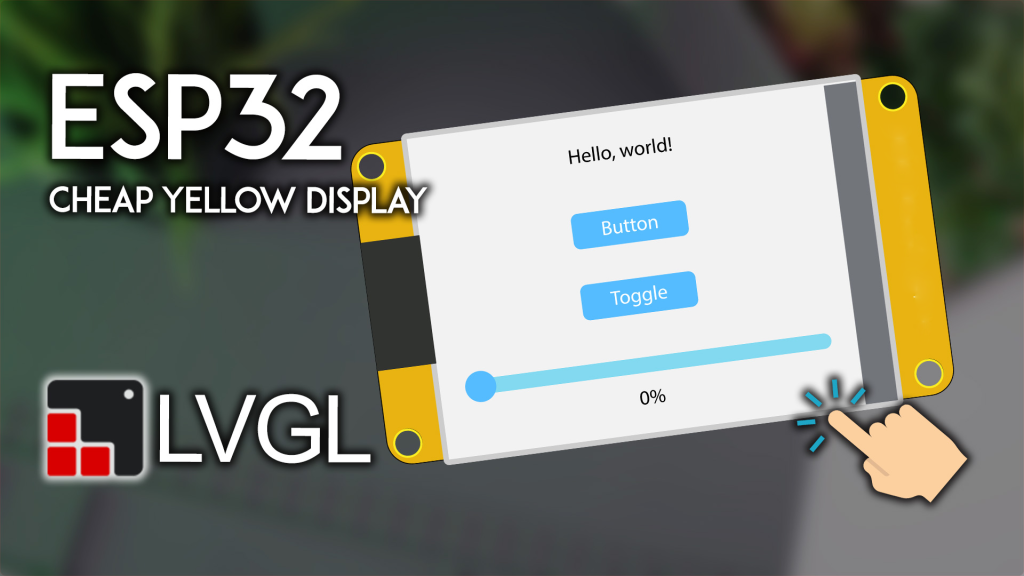
Why LVGL + ESP32 CYD is the Perfect GUI Combo
Он ESP32-2432S028R (Дешевый желтый дисплей) integrates an ESP32 module with a 2.8-inch TFT touchscreen, eliminating the hassle of connecting separate displays. When paired with LVGL (Light and Versatile Graphics Library) , you can create professional interfaces with:
-
Rich UI Elements: Buttons, sliders, charts, keyboards, and animations
-
Touch Interaction: Full resistive touch support out-of-the-box
-
Low Resource Usage: Runs efficiently on ESP32 with only 64KB Flash and 16KB RAM
-
Open-Source & Free: No licensing costs for commercial projects
This combination is ideal for smart home controllers, industrial panels, wearable devices, and interactive art projects.
What You’ll Need
Требования к оборудованию
-
Дешевый желтый дисплей ESP32 (CYD) – Model ESP32-2432S028R (Check current price and buy here)
-
USB cable (data transfer capable)
-
Computer with Arduino IDE installed
Требования к программному обеспечению
-
Arduino IDE (configured for ESP32)
-
Three key libraries:
-
TFT_eSPIby Bodmer (display driver) -
XPT2046_Сенсорный экранby Paul Stoffregen (touch driver) -
LVGLversion 9.2 by kisvegabor (graphics library)
-
New to the CYD? If you haven’t used this board before, we recommend first reading our ESP32 CYD Getting Started Guide to understand the basics.
Step-by-Step LVGL Setup for CYD
1. Install Required Libraries
Open your Arduino IDE and install these libraries via the Library Manager (Sketch > Include Library > Manage Libraries):
-
Искать TFT_eSPI by Bodmer → Install
-
Искать XPT2046_Сенсорный экран by Paul Stoffregen → Install
-
Искать LVGL by kisvegabor → Install version 9.2
2. Configure Library Files (Crucial Step!)
The default library configurations won’t work with the CYD. You must replace two critical configuration files with our custom versions.
Download Custom Config Files
For Windows Users:
-
Locate your Arduino sketchbook folder (File > Preferences > Sketchbook location)
-
Navigate to:
[Sketchbook]\libraries\TFT_eSPI\ -
Replace the existing
User_Setup.hwith the downloaded file -
Place
lv_conf.hdirectly in the[Sketchbook]\libraries\folder (not inside lvgl folder)
For Mac Users:
-
Find your sketchbook location (Arduino IDE > Settings > Sketchbook location)
-
Navigate to:
[Sketchbook]/libraries/TFT_eSPI/ -
Replace
User_Setup.hwith the downloaded version -
Place
lv_conf.hв[Sketchbook]/libraries/(not inside lvgl folder)
⚠️ IMPORTANT: Using any other User_Setup.h или lv_conf.h files from the internet will likely cause compilation errors. Always use the exact files provided above.
3. Upload Your First LVGL Project
Here’s a complete example that creates an interactive GUI with buttons and a slider. Copy this code to your Arduino IDE and upload it to your CYD.
/*  Rui Santos & Sara Santos - Random Nerd Tutorials
    Complete LVGL example for ESP32 Cheap Yellow Display (CYD)
    Hardware: ESP32-2432S028R
    Libraries: LVGL 9.2, TFT_eSPI, XPT2046_Touchscreen
*/

#включать <lvgl.h>
#включать <TFT_eSPI.h>
#включать <XPT2046_Touchscreen.h>

// Определения PIN-кодов сенсорного экрана для CYD
#определять XPT2046_IRQ 36
#определять XPT2046_MOSI 32
#определять XPT2046_MISO 39
#определять XPT2046_CLK 25
#определять XPT2046_CS 33

Сенсорный экран SPIClass SPI = SPIClass(ВСПИ);
XPT2046_Сенсорный экран сенсорный экран(XPT2046_CS, XPT2046_IRQ);

#определять ШИРИНА_ЭКРАНА 240
#определять ВЫСОТА_ЭКРАНА 320

инт touchX, touchY, touchZ;

// LVGL draw buffer
#определять DRAW_BUF_SIZE (ШИРИНА_ЭКРАНА * ВЫСОТА_ЭКРАНА / 10 * (LV_COLOR_DEPTH / 8))
uint32_t draw_buf[DRAW_BUF_SIZE / 4];

// LVGL logging
пустота log_print(lv_log_level_t level, константа чар * buf) {
  LV_UNUSED(level);
  Серийный номер.println(buf);
  Серийный номер.flush();
}

// Read touchscreen input for LVGL
пустота touchscreen_read(lv_indev_t * indev, lv_indev_data_t * данные) {
  если(сенсорный экран.tirqTouched() && сенсорный экран.тронут()) {
    TS_Point p = сенсорный экран.получить точку();
    touchX = карта(p.x, 200, 3700, 1, ШИРИНА_ЭКРАНА);
    touchY = карта(p.y, 240, 3800, 1, ВЫСОТА_ЭКРАНА);
    touchZ = p.z;

    данные->состояние = LV_INDEV_STATE_PRESSED;
    данные->точка.x = touchX;
    данные->точка.y = touchY;
  } еще {
    данные->состояние = LV_INDEV_STATE_RELEASED;
  }
}

// Button 1 event handler
static пустота event_handler_btn1(lv_event_t * e) {
  static инт count = 0;
  если(lv_event_get_code(e) == LV_EVENT_CLICKED) {
    count++;
    LV_LOG_USER("Button 1 clicked %d times", count);
  }
}

// Button 2 (toggle) event handler
static пустота event_handler_btn2(lv_event_t * e) {
  lv_obj_t * btn = (lv_obj_t*) lv_event_get_target(e);
  если(lv_event_get_code(e) == LV_EVENT_VALUE_CHANGED) {
    LV_LOG_USER("Toggle: %s", lv_obj_has_state(btn, LV_STATE_CHECKED) ? "ON" : "OFF");
  }
}

// Slider event handler
static lv_obj_t * slider_label;
static пустота slider_event_callback(lv_event_t * e) {
  lv_obj_t * slider = (lv_obj_t*) lv_event_get_target(e);
  чар buf[8];
  lv_snprintf(buf, sizeof(buf), "%d%%", (инт)lv_slider_get_value(slider));
  lv_label_set_text(slider_label, buf);
  lv_obj_align_to(slider_label, slider, LV_ALIGN_OUT_BOTTOM_MID, 0, 10);
  LV_LOG_USER("Slider value: %d%%", (инт)lv_slider_get_value(slider));
}

// Create the main GUI
пустота lv_create_main_gui(пустота) {
  // Title label
  lv_obj_t * title = lv_label_create(lv_scr_act());
  lv_label_set_text(title, "ESP32 CYD + LVGL");
  lv_obj_align(title, LV_ALIGN_TOP_MID, 0, 10);

  // Button 1 - Standard button
  lv_obj_t * btn1 = lv_btn_create(lv_scr_act());
  lv_obj_align(btn1, LV_ALIGN_CENTER, 0, -50);
  lv_obj_add_event_cb(btn1, event_handler_btn1, LV_EVENT_ALL, NULL);

  lv_obj_t * btn1_label = lv_label_create(btn1);
  lv_label_set_text(btn1_label, "Click Me");

  // Button 2 - Toggle button
  lv_obj_t * btn2 = lv_btn_create(lv_scr_act());
  lv_obj_align(btn2, LV_ALIGN_CENTER, 0, 10);
  lv_obj_add_flag(btn2, LV_OBJ_FLAG_CHECKABLE);
  lv_obj_add_event_cb(btn2, event_handler_btn2, LV_EVENT_VALUE_CHANGED, NULL);

  lv_obj_t * btn2_label = lv_label_create(btn2);
  lv_label_set_text(btn2_label, "Toggle");

  // Slider with value display
  lv_obj_t * slider = lv_slider_create(lv_scr_act());
  lv_obj_align(slider, LV_ALIGN_CENTER, 0, 70);
  lv_obj_set_width(slider, 150);
  lv_obj_add_event_cb(slider, slider_event_callback, LV_EVENT_VALUE_CHANGED, NULL);

  slider_label = lv_label_create(lv_scr_act());
  lv_label_set_text(slider_label, "0%");
  lv_obj_align_to(slider_label, slider, LV_ALIGN_OUT_BOTTOM_MID, 0, 10);
}

пустота настраивать() {
  Серийный номер.начинать(115200);
  Серийный номер.println("Starting LVGL on ESP32 CYD...");

  // Инициализация сенсорного экрана
  сенсорный экранSPI.начинать(XPT2046_CLK, XPT2046_MISO, XPT2046_MOSI, XPT2046_CS);
  сенсорный экран.начинать(сенсорный экранSPI);
  сенсорный экран.setRotation(1);  // Landscape orientation

  // Initialize LVGL
  lv_init();
  lv_log_register_print_cb(log_print);

  // Инициализация дисплея
  lv_display_t * disp;
  disp = lv_tft_espi_create(ШИРИНА_ЭКРАНА, ВЫСОТА_ЭКРАНА, draw_buf, sizeof(draw_buf));
  lv_display_set_rotation(disp, LV_DISPLAY_ROTATION_270);

  // Initialize touch input device
  lv_indev_t * indev = lv_indev_create();
  lv_indev_set_type(indev, LV_INDEV_TYPE_POINTER);
  lv_indev_set_read_cb(indev, touchscreen_read);

  // Create GUI
  lv_create_main_gui();

  Серийный номер.println("Setup complete!");
}

пустота петля() {
  lv_task_handler();  // Let LVGL handle GUI tasks
  lv_tick_inc(5);     // Tell LVGL time passed
  задерживать(5);           // Small delay
}
What This Example Does
After uploading, you’ll see:
-
A title at the top of the screen
-
A “Click Me” button that increments a counter (viewable in Serial Monitor)
-
A toggle button that switches between ON/OFF states
-
A slider that displays its current percentage value below it
The touchscreen is fully functional—tapping any element triggers the corresponding event.
Testing and Troubleshooting
Verify Your Setup
-
After uploading, the display should show the GUI elements
-
Open Serial Monitor (115200 baud) to see event logs
-
Touch each element to verify interaction
Common Issues
-
Blank display: Check that you replaced
User_Setup.hcorrectly -
Touch not working: Verify
XPT2046_Сенсорный экранlibrary is installed and pins match your board -
Compilation errors: Ensure you’re using LVGL version 9.2 and the custom
lv_conf.his in the correct location
Примечание: If you update your libraries later, you’ll need to reapply both configuration files.
Next Steps: Building Real Projects
With LVGL working on your CYD, you can now build:
-
Smart home dashboard with Wi-Fi controls
-
Weather station displaying forecasts and graphs
-
Data logger with SD card storage and touch controls
-
Game console with custom UI
Где купить ESP32? CYD
👉 Click here to check prices and buy ESP32 CYD
Get your ESP32 CYD today and start creating professional touchscreen interfaces with LVGL!
======================================