
ESP32 CYD с LVGL: построение графика температуры в реальном времени (BME280)
Want to visualize sensor data in a professional, interactive way on your ESP32 Cheap Yellow Display (CYD) ? In this project, you’ll learn how to create a dynamic line chart using LVGL that displays temperature readings from a BME280 sensor. The chart automatically scales, updates in real-time, and even lets you touch data points to see exact values—perfect for environmental monitoring, data logging, or any project where you need to track trends visually.
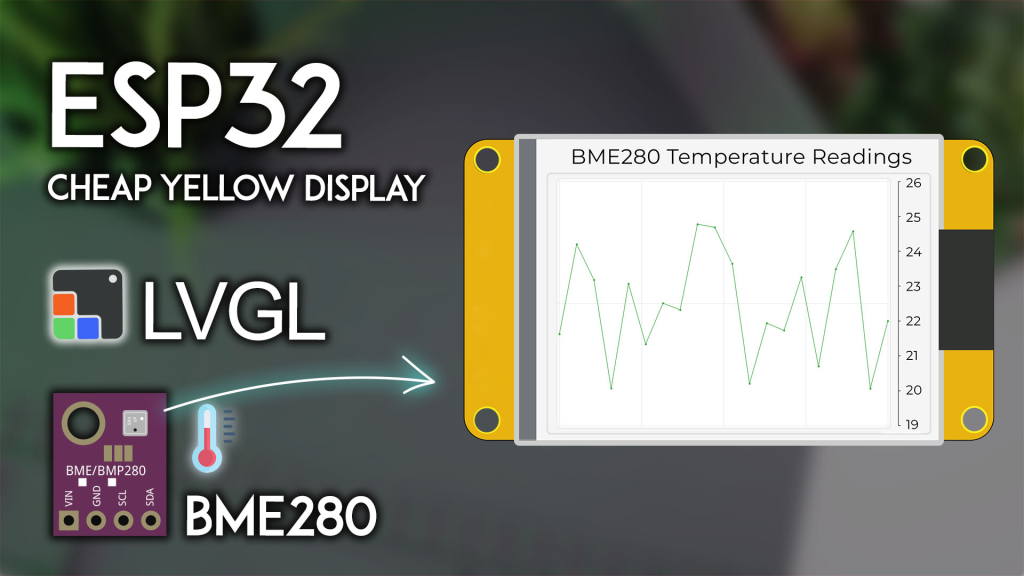
Project Overview: What You’ll Build
This project combines the power of the ESP32 CYD, the accuracy of the BME280 sensor, and the graphical capabilities of LVGL to create a self-updating temperature chart. Here’s how it works:
-
Real-time data plotting: The chart displays the last 20 temperature readings
-
Auto-scaling Y-axis: The vertical range adjusts automatically based on your current data
-
Circular buffer: When a new reading arrives, the oldest point is removed
-
Touch interaction: Tap near any data point to see its precise temperature value
-
10-second updates: New readings are taken and displayed every 10 seconds
This project is an excellent foundation for creating weather stations, industrial monitors, or any data visualization dashboard.
What You’ll Need: Complete Parts List
Before starting, gather these components:
| Компонент | Количество | Цель | Где купить |
|---|---|---|---|
| Дешевый желтый дисплей ESP32 (CYD) | 1 | Main board with touchscreen | Check price |
| BME280 sensor module | 1 | Temperature & humidity sensor | BME280 options |
| JST connector (included with CYD) | 1 | Connects sensor to board | Usually included |
| Jumper wires | Few | For sensor connections | – |
👉 Find all components at the best prices here
Wiring the BME280 to CYD
Он CYD board includes a CN1 connector (JST) that provides access to additional GPIOs. Connect your BME280 sensor as follows:
| BME280 Pin | CYD CN1 Pin | ESP32 GPIO |
|---|---|---|
| ВЦК | 3,3 В | – |
| НД | НД | – |
| СДА | СДА | GPIO 27 |
| СКЛ | СКЛ | GPIO 22 |
Примечание: If your CYD didn’t come with the mating JST connector, you can solder wires directly to the CN1 header pins or use a breadboard with jumper wires.
Prerequisites: Setting Up Your Environment
To ensure your project compiles and runs correctly, complete these essential setup steps in order:
1. ESP32 Board Support in Arduino IDE
If you haven’t already, install ESP32 board support: Installing ESP32 Board in Arduino IDE.
2. Get Familiar with the CYD
First-time CYD user? Complete our Getting Started with ESP32 CYD guide. You’ll need to:
-
Install TFT_eSPI library
-
Configure the critical
User_Setup.hfile -
Test basic display functionality
3. Install LVGL for CYD
This project uses LVGL 9.x for the chart interface. Follow our dedicated tutorial to install and configure LVGL properly:
👉 LVGL with ESP32 Cheap Yellow Display
⚠️ CRITICAL: You must use the exact lv_conf.h file provided in that tutorial. Other configurations will нет work with this example.
4. Install BME280 Libraries
Install the Adafruit BME280 library and its dependencies:
-
In Arduino IDE: Sketch > Добавить библиотеку > Управление библиотеками
-
Искать “Adafruit BME280” and install the latest version
-
Install any prompted dependencies (Adafruit Bus IO, Adafruit Unified Sensor)
5. (Optional) Touchscreen Calibration
For the most accurate touch interaction with data points, we recommend calibrating your touchscreen. This ensures that tapping a data point reliably selects it. Follow our ESP32 CYD Touchscreen Calibration Guide to get your specific calibration coefficients.
Complete Code: Temperature Line Chart on CYD
Copy the following code into your Arduino IDE. You must replace the placeholder touch calibration values with your own from the calibration guide (or comment out the advanced calibration and use the basic map() method).
/*********
  ESP32 CYD with LVGL - Dynamic Temperature Line Chart (BME280)
  Complete tutorial: https://RandomNerdTutorials.com/esp32-cyd-lvgl-line-chart/
*********/

#включать <lvgl.h>
#включать <TFT_eSPI.h>
#включать <XPT2046_Touchscreen.h>
#включать <Wire.h>
#включать <Adafruit_Sensor.h>
#включать <Adafruit_BME280.h>

// --- BME280 Configuration ---
#определять I2C_SDA 27
#определять I2C_SCL 22
TwoWire I2CBME = TwoWire(0);
Adafruit_BME280 bme;

// Temperature unit: 1 = Celsius, 0 = Fahrenheit
#определять TEMP_CELSIUS 1

// Chart data buffer
#определять BME_NUM_READINGS 20
плавать bme_last_readings[BME_NUM_READINGS] = {0};

// --- Touchscreen Pins (CYD Standard) ---
#определять XPT2046_IRQ 36
#определять XPT2046_MOSI 32
#определять XPT2046_MISO 39
#определять XPT2046_CLK 25
#определять XPT2046_CS 33

Сенсорный экран SPIClass SPI = SPIClass(ВСПИ);
XPT2046_Сенсорный экран сенсорный экран(XPT2046_CS, XPT2046_IRQ);

// --- Display Dimensions ---
#определять ШИРИНА_ЭКРАНА 240
#определять ВЫСОТА_ЭКРАНА 320

// Touch coordinates
инт touchX, touchY, touchZ;

// LVGL draw buffer
#определять DRAW_BUF_SIZE (ШИРИНА_ЭКРАНА * ВЫСОТА_ЭКРАНА / 10 * (LV_COLOR_DEPTH / 8))
uint32_t draw_buf[DRAW_BUF_SIZE / 4];

// Timing
без подписи длинный previousMillis = 0;
константа длинный interval = 10000;  // Update chart every 10 seconds

// --- LVGL Logging ---
пустота log_print(lv_log_level_t level, константа чар * buf) {
  LV_UNUSED(level);
  Серийный номер.println(buf);
  Серийный номер.flush();
}

// --- Touchscreen Read Function for LVGL ---
пустота touchscreen_read(lv_indev_t * indev, lv_indev_data_t * данные) {
  если(сенсорный экран.tirqTouched() && сенсорный экран.тронут()) {
    TS_Point p = сенсорный экран.получить точку();

    // --- ADVANCED CALIBRATION (Recommended) ---
    // Replace these with your own values from the calibration guide!
    плавать альфа_х = -0.000;   // <<< REPLACE WITH YOUR VALUES
    плавать бета_х = 0.090;      // <<< REPLACE WITH YOUR VALUES
    плавать дельта_х = -33.771;   // <<< REPLACE WITH YOUR VALUES
    плавать альфа_й = 0.066;     // <<< REPLACE WITH YOUR VALUES
    плавать бета_й = 0.000;      // <<< REPLACE WITH YOUR VALUES
    плавать дельта_й = -14.632;   // <<< REPLACE WITH YOUR VALUES

    // Apply calibration and clamp to screen bounds
    touchX = альфа_й * p.x + бета_й * p.y + дельта_й;
    touchX = constrain(touchX, 0, ШИРИНА_ЭКРАНА - 1);

    touchY = альфа_х * p.x + бета_х * p.y + дельта_х;
    touchY = constrain(touchY, 0, ВЫСОТА_ЭКРАНА - 1);

    // --- BASIC CALIBRATION (Alternative) ---
    // If you haven't calibrated, uncomment these lines and comment the advanced section above
    // touchX = map(p.x, 200, 3700, 1, SCREEN_WIDTH);
    // touchY = map(p.y, 240, 3800, 1, SCREEN_HEIGHT);
    // touchX = constrain(touchX, 0, SCREEN_WIDTH - 1);
    // touchY = constrain(touchY, 0, SCREEN_HEIGHT - 1);

    touchZ = p.z;

    данные->состояние = LV_INDEV_STATE_PRESSED;
    данные->точка.x = touchX;
    данные->точка.y = touchY;

    // Optional: Print touch data for debugging
    // Serial.printf("Touch: X=%d, Y=%d, Z=%d\n", touchX, touchY, touchZ);
  } еще {
    данные->состояние = LV_INDEV_STATE_RELEASED;
  }
}

// --- Callback to draw label on touched chart point ---
static пустота chart_draw_label_cb(lv_event_t * e) {
  lv_event_code_t code = lv_event_get_code(e);
  lv_obj_t * chart = (lv_obj_t*) lv_event_get_target(e);

  если(code == LV_EVENT_VALUE_CHANGED) {
    lv_obj_invalidate(chart);
  }
  если(code == LV_EVENT_REFR_EXT_DRAW_SIZE) {
    int32_t * s = (int32_t*)lv_event_get_param(e);
    *s = LV_MAX(*s, 20);
  }
  еще если(code == LV_EVENT_DRAW_POST_END) {
    int32_t id = lv_chart_get_pressed_point(chart);
    если(id == LV_CHART_POINT_NONE) возвращаться;

    lv_chart_series_t * ser = lv_chart_get_series_next(chart, NULL);
    пока(ser) {
      lv_point_t p;
      lv_chart_get_point_pos_by_id(chart, ser, id, &p);

      int32_t * y_array = lv_chart_get_y_array(chart, ser);
      int32_t value = y_array[id];
      чар buf[32];
      константа чар * unit = TEMP_CELSIUS ? "\u00B0C" : "\u00B0F";

      // Format label with the actual temperature value
      lv_snprintf(buf, sizeof(buf), " %3.1f%s ", bme_last_readings[id], unit);

      // Draw label background
      lv_draw_rect_dsc_t draw_rect_dsc;
      lv_draw_rect_dsc_init(&draw_rect_dsc);
      draw_rect_dsc.bg_color = lv_color_black();
      draw_rect_dsc.bg_opa = LV_OPA_60;
      draw_rect_dsc.radius = 2;

      lv_area_t a;
      a.x1 = chart->coords.x1 + p.x - 35;
      a.x2 = chart->coords.x1 + p.x + 35;
      a.y1 = chart->coords.y1 + p.y - 30;
      a.y2 = chart->coords.y1 + p.y - 10;

      lv_layer_t * layer = lv_event_get_layer(e);
      lv_draw_rect(layer, &draw_rect_dsc, &a);

      // Draw label text
      lv_draw_label_dsc_t draw_label_dsc;
      lv_draw_label_dsc_init(&draw_label_dsc);
      draw_label_dsc.color = lv_color_white();
      draw_label_dsc.текст = buf;
      draw_label_dsc.text_local = истинный;
      lv_draw_label(layer, &draw_label_dsc, &a);

      ser = lv_chart_get_series_next(chart, ser);
    }
  }
  еще если(code == LV_EVENT_RELEASED) {
    lv_obj_invalidate(chart);
  }
}

// --- Create the Chart UI ---
lv_obj_t * chart;
lv_chart_series_t * ser_temp;

пустота create_chart_ui() {
  // Clear screen
  lv_obj_clean(lv_scr_act());

  // Title label
  lv_obj_t * label = lv_label_create(lv_screen_active());
  lv_label_set_text(label, "BME280 Temperature");
  lv_obj_align(label, LV_ALIGN_TOP_MID, 0, 10);

  // Create chart
  chart = lv_chart_create(lv_screen_active());
  lv_obj_set_size(chart, 280, 200);
  lv_obj_align(chart, LV_ALIGN_CENTER, 0, 10);

  // Configure chart appearance
  lv_chart_set_type(chart, LV_CHART_TYPE_LINE);
  lv_chart_set_div_line_count(chart, 3, 5);
  lv_chart_set_range(chart, LV_CHART_AXIS_PRIMARY_Y, 0, 100); // Will auto-scale
  lv_obj_set_style_line_width(chart, 2, LV_PART_ITEMS);

  // Add data series (temperature)
  ser_temp = lv_chart_add_series(chart, lv_palette_main(LV_PALETTE_RED), LV_CHART_AXIS_PRIMARY_Y);

  // Initialize chart with zeros
  lv_chart_set_ext_y_array(chart, ser_temp, (lv_coord_t*)bme_last_readings);

  // Add touch interaction callback
  lv_obj_add_event_cb(chart, chart_draw_label_cb, LV_EVENT_ALL, NULL);
}

// --- Initialize BME280 Sensor ---
пустота initBME() {
  I2CBME.начинать(I2C_SDA, I2C_SCL, 100000);
  если (!бме.начинать(0x76, &I2CBME)) {
    Серийный номер.println("BME280 not found! Check wiring.");
    пока (1);
  }
  Серийный номер.println("BME280 initialized.");
}

// --- Read Temperature (returns Celsius or Fahrenheit based on TEMP_CELSIUS) ---
плавать readTemperature() {
  плавать temp = бме.readTemperature(); // Always Celsius from sensor
  #если !TEMP_CELSIUS
    temp = temp * 9.0 / 5.0 + 32.0;   // Convert to Fahrenheit
  #endif
  возвращаться temp;
}

// --- Update chart with new reading ---
пустота updateChart() {
  // Shift readings left
  для (инт i = 0; i < BME_NUM_READINGS - 1; i++) {
    bme_last_readings[i] = bme_last_readings[i + 1];
  }

  // Get new reading
  плавать newTemp = readTemperature();
  bme_last_readings[BME_NUM_READINGS - 1] = newTemp;

  // Find min and max for auto-scaling
  плавать minTemp = bme_last_readings[0];
  плавать maxTemp = bme_last_readings[0];
  для (инт i = 1; i < BME_NUM_READINGS; i++) {
    если (bme_last_readings[i] < minTemp) minTemp = bme_last_readings[i];
    если (bme_last_readings[i] > maxTemp) maxTemp = bme_last_readings[i];
  }

  // Add some padding to the range
  minTemp -= 1.0;
  maxTemp += 1.0;

  // Update chart range
  lv_chart_set_range(chart, LV_CHART_AXIS_PRIMARY_Y, (lv_coord_t)minTemp, (lv_coord_t)maxTemp);

  // Update series data
  lv_chart_set_ext_y_array(chart, ser_temp, (lv_coord_t*)bme_last_readings);
  lv_chart_refresh(chart); // Force redraw
}

// --- Setup ---
пустота настраивать() {
  Серийный номер.начинать(115200);
  Серийный номер.println("ESP32 CYD LVGL Line Chart Starting...");

  // Инициализация BME280
  initBME();

  // Инициализация сенсорного экрана
  сенсорный экранSPI.начинать(XPT2046_CLK, XPT2046_MISO, XPT2046_MOSI, XPT2046_CS);
  сенсорный экран.начинать(сенсорный экранSPI);
  сенсорный экран.setRotation(1); // Landscape orientation

  // Initialize LVGL
  lv_init();
  lv_log_register_print_cb(log_print);

  // Инициализация дисплея
  lv_display_t * disp = lv_tft_espi_create(ШИРИНА_ЭКРАНА, ВЫСОТА_ЭКРАНА, draw_buf, sizeof(draw_buf));
  lv_display_set_rotation(disp, LV_DISPLAY_ROTATION_270);

  // Initialize touch input for LVGL
  lv_indev_t * indev = lv_indev_create();
  lv_indev_set_type(indev, LV_INDEV_TYPE_POINTER);
  lv_indev_set_read_cb(indev, touchscreen_read);

  // Create the chart UI
  create_chart_ui();

  // Initial chart update with current temperature
  для (инт i = 0; i < BME_NUM_READINGS; i++) {
    updateChart(); // Fill buffer with initial readings
  }

  Серийный номер.println("Ready. Chart updates every 10 seconds.");
}

// --- Main Loop ---
пустота петля() {
  без подписи длинный currentMillis = миллис();
  если (currentMillis - previousMillis >= interval) {
    previousMillis = currentMillis;
    updateChart();
    Серийный номер.printf("New temperature: %.2f\n", bme_last_readings[BME_NUM_READINGS - 1]);
  }

  lv_task_handler();
  lv_tick_inc(5);
  задерживать(5);
}
Understanding the Key Parts
1. BME280 Initialization and Reading
The sensor connects via I2C on pins GPIO 27 (SDA) and GPIO 22 (SCL). The initBME() function establishes communication, and readTemperature() returns the current temperature in your chosen unit.
2. Chart Data Management
Он bme_last_readings array acts as a circular buffer holding 20 readings. When updateChart() is called:
-
All values shift left (oldest discarded)
-
New reading is added at the end
-
The Y-axis range recalculates based on current min/max values
-
The chart refreshes to show updated data
3. Touch Interaction
Он chart_draw_label_cb() function handles touch events on the chart:
-
Detects which data point was touched
-
Draws a black label with the exact temperature value
-
Automatically cleans up when touch is released
This makes it easy to inspect individual readings without clutter.
4. Touchscreen Calibration
The code includes two methods for touch:
-
Advanced calibration (recommended): Uses 6 coefficients from the calibration guide for pixel-perfect accuracy
-
Basic mapping: Simple
map()function that works reasonably well for most boards
For best results, complete the touchscreen calibration tutorial and replace the placeholder coefficients.
Testing Your Temperature Chart
-
Upload the code to your ESP32 CYD
-
Открытый последовательный монитор (115200 baud) to see debug output
-
Observe the chart—it should start plotting temperature readings every 10 seconds
-
Touch any data point on the line—a label appears showing the exact temperature
If the chart doesn’t update or touch doesn’t work:
-
Verify BME280 wiring (SDA→27, SCL→22)
-
Check that you’ve installed LVGL and TFT_eSPI with the correct configuration files
-
Try the basic touch mapping if advanced calibration seems off
Taking It Further: Project Enhancements
This foundation opens many possibilities:
Add Humidity or Pressure
The BME280 also measures humidity and pressure. Create additional chart series to display all three simultaneously.
Log Data to SD Card
The CYD has a microSD slot. Save all readings with timestamps for later analysis.
Add Wi-Fi Upload
Send temperature data to a web server, database, or IoT platform like Blynk or ThingSpeak.
Create Historical Views
Add buttons to switch between different time scales (last hour, last day, etc.).
Add Alerts
Trigger the RGB LED or a sounder if temperature exceeds a threshold.
Where to Buy Components
Ready to build your own temperature chart? Here are the parts you’ll need:
-
ESP32 Cheap Yellow Display (CYD) – Main board with touchscreen
-
BME280 Sensor Module – For accurate temperature readings
👉 Check all components and best prices here
Заключение
You’ve just built a professional-quality real-time temperature chart on the Дешевый желтый дисплей ESP32 using LVGL. This project demonstrates:
-
Dynamic data visualization with auto-scaling axes
-
Touch interaction for precise value inspection
-
Sensor integration with the popular BME280
-
Real-time updates with circular buffer management
This same pattern can visualize any time-series data—stock prices, signal strength, air quality, or machine performance. The ESP32 CYD and LVGL make it surprisingly easy to create polished, interactive displays for your projects.
Get your components today and start visualizing your data!
======================================