
Создайте интеллектуальный монитор температуры: ESP32 CYD с LVGL и DS18B20 (полное руководство)
Looking to build a sleek, real-time temperature monitor with a visual gauge for your workshop, greenhouse, or smart home? Combining the incredibly popular Дешевый желтый дисплей ESP32 (CYD) с датчик температуры DS18B20 and the powerful LVGL graphics library is the perfect solution.
This step-by-step guide, updated for 2026, will show you exactly how to create a professional-looking interface that displays temperature readings on a text label and a dynamic, color-changing curved gauge. You’ll learn how to style LVGL objects, read sensor data accurately, and have a fully functional project running in under an hour.
Whether you’re a maker building a climate control system or a hobbyist learning IoT displays, this guide provides the tested code and wiring instructions you need to succeed—without the usual library headaches.
Why This Project? Understanding the Value for Your Purchases
Before we dive into the code, it’s worth understanding why this specific combination of hardware and software is a smart investment for your project toolkit.
-
ESP32 CYD (ESP32-2432S028R) : For around $15, you get an Плата разработки ESP32 with a built-in 2.8-inch touchscreen, microSD slot, and RGB LED. It’s arguably the best value display board for IoT projects.
-
The DS18B20 Sensor: This waterproof, digital temperature sensor is incredibly accurate and uses the simple OneWire protocol, meaning it only requires one GPIO pin. It’s perfect for remote sensing. You can find genuine DS18B20 sensors здесь.
-
LVGL: This open-source graphics library is the industry standard for embedded GUIs. Learning it now allows you to build far more complex interfaces later—think touch buttons, animations, and dashboards.
Ready to build? Let’s get started.
Prerequisites: The Foundation for Success (Read Carefully)
To ensure your project compiles and runs without errors, you должен follow these setup steps precisely. Using incorrect library configurations is the #1 reason projects fail.
1. Hardware You’ll Need
-
ESP32 CYD Board (ESP32-2432S028R)
-
DS18B20 Temperature Sensor (TO-92 package or waterproof version)
-
4.7k Ohm Resistor (for the sensor’s data line)
-
Jumper wires and a breadboard, or the JST connector that came with your CYD.
-
Micro USB Cable (for power and programming).
2. Software Setup: The “Must-Do” Steps
You will program the ESP32 using the Arduino IDE. Complete these tutorials in order:
-
Install ESP32 Boards: Follow our guide to add ESP32 support to your Arduino IDE: [Install ESP32 Boards in Arduino IDE].
-
Get to Know Your CYD: Understanding the pinout is critical. Start with our [Getting Started with ESP32 CYD Board] guide.
-
Install and Configure LVGL & TFT_eSPI: This is the most important step. LVGL (version 9.2 by kisvegabor) and TFT_eSPI require specific configuration files (
lv_conf.hиUser_Setup.h) to work with the CYD.-
⚠️ CRITICAL: Using the default configuration files from the libraries will НЕТ work. You должен download the exact files provided in our [CYD LVGL Setup Guide].
-
-
Install DS18B20 Libraries: You’ll need two libraries from the Library Manager: OneWire by Paul Stoffregen and DallasTemperature by Miles Burton.
Wiring the DS18B20 to Your CYD
The DS18B20 uses the OneWire protocol, which requires a single data line and a pull-up resistor.
-
Connection Point: The CYD has a CN1 connector (often with a small JST pigtail) that breaks out several GPIO pins. We’ll use GPIO 27 for the data pin.
-
Circuit:
-
Connect the DS18B20 VDD (red) pin to the CYD’s 3,3 В pin.
-
Connect the DS18B20 GND (black/blue) pin to the CYD’s НД pin.
-
Connect the DS18B20 DATA (yellow/white) pin to the CYD’s GPIO 27.
-
Connect a 4.7k Ohm resistor between the DATA pin and the 3,3 В pin (this is the pull-up resistor).
-
(You can refer to the detailed CYD Pinout Guide здесь for exact pin locations.)
The Complete Arduino Code: Temperature on Text & Arc
Create a new Arduino sketch and paste the code below. After pasting, you’ll need to select your temperature unit and ensure your libraries are correctly configured as per the prerequisites.
/* Rui Santos & Sara Santos - Random Nerd Tutorials
   Complete guide at: https://RandomNerdTutorials.com/esp32-cyd-lvgl-temperature-ds18b20/

   This example displays DS18B20 temperature on a CYD screen using LVGL.
   Temperature is shown on a text label (with color change) and an arc gauge.
*/

// --- REQUIRED LIBRARIES (Install via Library Manager) ---
#включать <lvgl.h>              // LVGL library v9.2 by kisvegabor
#включать <TFT_eSPI.h>          // TFT driver by Bodmer
#включать <OneWire.h>           // OneWire by Paul Stoffregen
#включать <DallasTemperature.h> // DallasTemperature by Miles Burton

// --- DS18B20 CONFIGURATION ---
// GPIO pin where the DS18B20 data line is connected
константа инт oneWireBus = 27;
// Setup OneWire and DallasTemperature instances
OneWire oneWire(oneWireBus);
DallasTemperature датчики(&oneWire);

// --- TEMPERATURE UNIT SELECTION ---
// SET TO 1 FOR CELSIUS, SET TO 0 FOR FAHRENHEIT
#определять TEMP_CELSIUS 1

// Automatically set gauge range based on selected unit
#если TEMP_CELSIUS
  #определять TEMP_ARC_MIN -20
  #определять TEMP_ARC_MAX 40
  #определять DEGREE_SYMBOL "\u00B0C"
#еще
  #определять TEMP_ARC_MIN -4
  #определять TEMP_ARC_MAX 104
  #определять DEGREE_SYMBOL "\u00B0F"
#endif

// --- DISPLAY CONFIGURATION (for the CYD) ---
#определять ШИРИНА_ЭКРАНА 240
#определять ВЫСОТА_ЭКРАНА 320
#определять DRAW_BUF_SIZE (ШИРИНА_ЭКРАНА * ВЫСОТА_ЭКРАНА / 10 * (LV_COLOR_DEPTH / 8))
uint32_t draw_buf[DRAW_BUF_SIZE / 4];

// LVGL log function for debugging via Serial
пустота log_print(lv_log_level_t level, константа чар * buf) {
  LV_UNUSED(level);
  Серийный номер.println(buf);
  Серийный номер.flush();
}

// LVGL objects that need to be accessed globally
lv_obj_t * arc;

// --- FUNCTION TO UPDATE TEMPERATURE (called by animation) ---
static пустота set_temp(пустота * text_label_temp_value, int32_t v) {
  // Request fresh temperature from sensor
  датчики.requestTemperatures();

  // Read temperature based on selected unit
  плавать ds18b20_temp;
  #если TEMP_CELSIUS
    ds18b20_temp = датчики.getTempCByIndex(0);
  #еще
    ds18b20_temp = датчики.getTempFByIndex(0);
  #endif

  // --- Change Text Color Based on Temperature Range ---
  // Define thresholds for color change
  #если TEMP_CELSIUS
    плавать cold_threshold = 10.0;
    плавать hot_threshold = 29.0;
  #еще
    плавать cold_threshold = 50.0;
    плавать hot_threshold = 84.2;
  #endif

  // Apply color style to the text label
  если(ds18b20_temp <= cold_threshold) {
    lv_obj_set_style_text_color((lv_obj_t*) text_label_temp_value, lv_palette_main(LV_PALETTE_BLUE), 0);
  }
  еще если (ds18b20_temp > cold_threshold && ds18b20_temp <= hot_threshold) {
    lv_obj_set_style_text_color((lv_obj_t*) text_label_temp_value, lv_palette_main(LV_PALETTE_GREEN), 0);
  }
  еще {
    lv_obj_set_style_text_color((lv_obj_t*) text_label_temp_value, lv_palette_main(LV_PALETTE_RED), 0);
  }

  // --- Update Arc Gauge Value ---
  // Map the temperature reading to the arc's 0-100 range
  инт arc_value = карта((инт)ds18b20_temp, TEMP_ARC_MIN, TEMP_ARC_MAX, 0, 100);
  arc_value = constrain(arc_value, 0, 100); // Prevent out-of-bounds values
  lv_arc_set_value(arc, arc_value);

  // --- Update Text Label with Temperature ---
  String temp_text = Нить(ds18b20_temp, 1) + DEGREE_SYMBOL; // One decimal place
  lv_label_set_text((lv_obj_t*) text_label_temp_value, temp_text.c_str());

  // Debug output to Serial Monitor
  Серийный номер.печать("Temperature: ");
  Серийный номер.println(temp_text);
}

// --- FUNCTION TO CREATE THE USER INTERFACE ---
пустота lv_create_main_gui(пустота) {
  // Create an Arc (curved gauge) object
  arc = lv_arc_create(lv_screen_active());
  lv_obj_set_size(arc, 210, 210);          // Set size
  lv_arc_set_rotation(arc, 135);            // Start angle offset
  lv_arc_set_bg_angles(arc, 0, 270);        // Background arc angle (270 degrees for a 3/4 gauge)
  // Style the indicator and knob
  lv_obj_set_style_arc_color(arc, lv_color_hex(0x666666), LV_PART_INDICATOR);
  lv_obj_set_style_bg_color(arc, lv_color_hex(0x333333), LV_PART_KNOB);
  lv_obj_align(arc, LV_ALIGN_CENTER, 0, 10); // Position on screen

  // Create a text label to display the temperature value
  lv_obj_t * text_label_temp_value = lv_label_create(lv_screen_active());
  lv_label_set_text(text_label_temp_value, "--.-"); // Placeholder
  lv_obj_align(text_label_temp_value, LV_ALIGN_CENTER, 0, 10); // Center on screen

  // Apply a larger font style to the text label
  static lv_style_t style_temp;
  lv_style_init(&style_temp);
  lv_style_set_text_font(&style_temp, &lv_font_montserrat_32); // Use built-in 32px font
  lv_obj_add_style(text_label_temp_value, &style_temp, 0);

  // --- Create an Animation to Update Temperature Periodically ---
  lv_anim_t a_temp;
  lv_anim_init(&a_temp);
  lv_anim_set_exec_cb(&a_temp, set_temp);           // Function to call
  lv_anim_set_duration(&a_temp, 2000);              // Update every 2000ms (2 seconds)
  lv_anim_set_playback_duration(&a_temp, 2000);     // For infinite repeat, same as duration
  lv_anim_set_var(&a_temp, text_label_temp_value);  // Pass the label object to the function
  lv_anim_set_values(&a_temp, 0, 100);              // Dummy values, not used by callback
  lv_anim_set_repeat_count(&a_temp, LV_ANIM_REPEAT_INFINITE); // Loop forever
  lv_anim_start(&a_temp);
}

// --- SETUP FUNCTION: Runs once at startup ---
пустота настраивать() {
  // Initialize Serial Monitor for debugging
  Серийный номер.начинать(115200);
  Серийный номер.println("ESP32 CYD DS18B20 Temperature Monitor Starting...");

  // Initialize DS18B20 sensor
  датчики.начинать();

  // Initialize LVGL
  lv_init();
  lv_log_register_print_cb(log_print); // Enable debug logs

  // Create the display object (using the TFT_eSPI driver configured for CYD)
  lv_display_t * disp;
  disp = lv_tft_espi_create(ШИРИНА_ЭКРАНА, ВЫСОТА_ЭКРАНА, draw_buf, sizeof(draw_buf));
  lv_display_set_rotation(disp, LV_DISPLAY_ROTATION_270); // Correct rotation for CYD

  // Build the user interface
  lv_create_main_gui();

  Серийный номер.println("Setup Complete. GUI Running.");
}

// --- LOOP FUNCTION: Runs continuously ---
пустота петля() {
  // LVGL core tasks: Handle rendering and animation updates
  lv_task_handler();
  lv_tick_inc(5); // Tell LVGL that 5ms have passed
  задерживать(5);       // Small delay to prevent watchdog issues
}
How the Code Works: A Quick Breakdown
Understanding the code will help you customize it for your own projects.
-
Sensor Reading: The
sensors.requestTemperatures()иsensors.getTempCByIndex(0)functions (from the DallasTemperature library) handle all the OneWire communication to get a clean temperature value. -
Unit Selection: The
#define TEMP_CELSIUS 1line is a simple switch. Change it to0and re-upload to display Fahrenheit. The gauge range and degree symbol update automatically thanks to the#if TEMP_CELSIUS ... #else ... #endifpreprocessor directives. -
Dynamic Styling: Inside the
set_temp()function,lv_obj_set_style_text_color()is used to change the label’s color based on simpleеслиstatements comparing the temperature to thresholds. This creates an intuitive visual alert system. -
The Arc Gauge: The
lv_arcobject is created and styled. Its value is set usinglv_arc_set_value(). Note themap()function converts the temperature range (e.g., -20 to 40) to the arc’s internal range (0 to 100). -
Animation for Updates: Instead of using
delay()in theпетля(), which would freeze the GUI, we use an LVGL animation.lv_anim_set_exec_cb(&a_temp, set_temp)tells LVGL to call ourset_temp()function every 2 seconds (lv_anim_set_duration(&a_temp, 2000)). This is the professional way to handle periodic tasks in a GUI.
Testing Your Temperature Monitor
-
Verify Your Files: Ensure you have the custom
lv_conf.hиUser_Setup.hfiles in the correct locations as per the setup guide. -
Select Board and Port: In Arduino IDE, go to
Tools>Доскаand selectESP32 Dev Module. Then select the correct COM Port. -
Загрузить: Click the upload button. Open the Serial Monitor (set to 115200 baud) to see debug output.
-
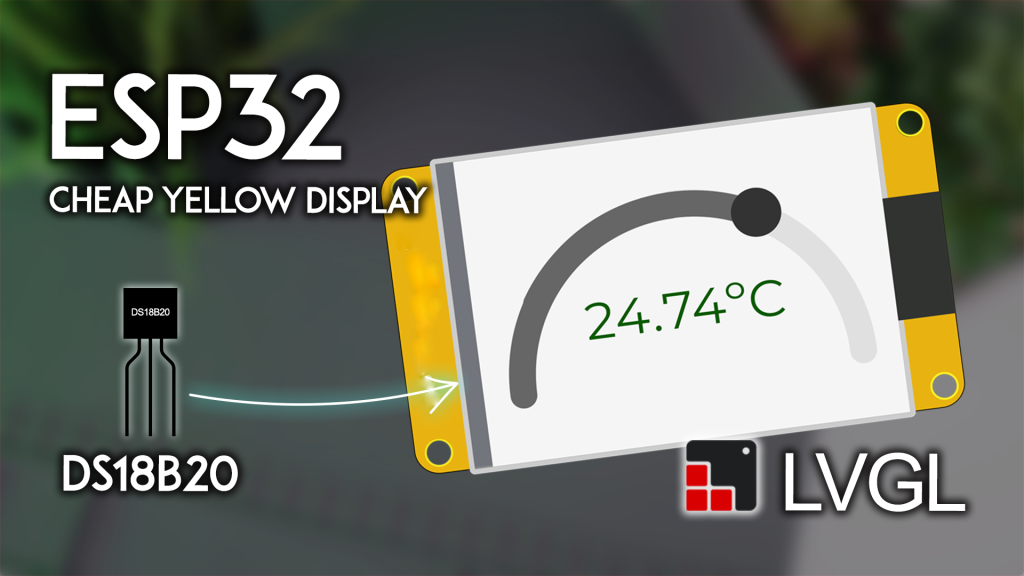
See the Result: After uploading, your CYD screen should show a gray arc and a temperature reading in the center. The text color will be blue, green, or red based on the temperature. Touch the sensor to see the value and gauge move!
(Image: Your CYD displaying the temperature on the arc gauge)
Устранение распространенных проблем
-
Screen is Blank or White: This is 99% a library configuration issue. Revisit the CYD LVGL Setup Guide and ensure you’ve replaced the default
lv_conf.hиUser_Setup.hfiles with the ones provided. -
Temperature Reads -127°C or 85°C: This is the sensor’s “error” value.
-
Check your wiring: Is the 4.7k pull-up resistor connected correctly between DATA and 3.3V?
-
Check the GPIO pin: Is the code set to
27and is your sensor connected to that pin?
-
-
Text or Gauge Not Updating: The animation might not be starting. Check the Serial Monitor for any LVGL error logs. Ensure you haven’t added a long
delay()somewhere in your code, as this will block LVGL. -
Brownout Errors: If your ESP32 resets repeatedly, your power source may be weak. Use a good quality USB cable and a USB port that can supply sufficient current.
Taking Your CYD Projects Further
You’ve just built a core component of any environmental monitoring system. This same principle can be extended to:
-
Multi-Sensor Dashboard: Add a DHT22 for humidity and display both values.
-
Smart Thermostat Controller: Add touch buttons to set a target temperature and control a relay.
-
Data Logger: Use the CYD‘s microSD card slot to log temperature readings over time.
If you’re ready to move from single sensors to complete, connected home automation systems, our eBook “Build a Home Automation System for Beginners” guides you through using the ESP32, LVGL, and Node-RED to create a professional, Wi-Fi-enabled control panel.
Conclusion: Your First Step into Professional IoT GUIs
Congratulations! You’ve successfully built a smart, visually appealing temperature monitor. You’ve not only learned how to read a sensor but also mastered essential LVGL techniques like creating arcs, dynamic styling, and using animations—skills that form the foundation for any sophisticated embedded GUI project.
ESP32 CYD is an unbeatable platform for learning and prototyping. Now go ahead and experiment—change the colors, add a second sensor, or design a new layout. The possibilities are endless.
======================================