
ESP32 CYD с LVGL: Создание таблицы данных датчика (BME280 + LDR)
Want to create a professional-looking data dashboard на вашем Дешевый желтый дисплей ESP32? In this project, you’ll learn how to build a responsive table using LVGL that displays real-time readings from a BME280 sensor (temperature, humidity, pressure) and the built-in LDR (light sensor). The table also shows the current date, time (from an internet API), and your board’s IP address—all updated with a single touch of a floating refresh button.
This project is perfect for creating environmental monitoring stations, weather dashboards, or any IoT application where you need to present multiple sensor values in a clean, organized format.
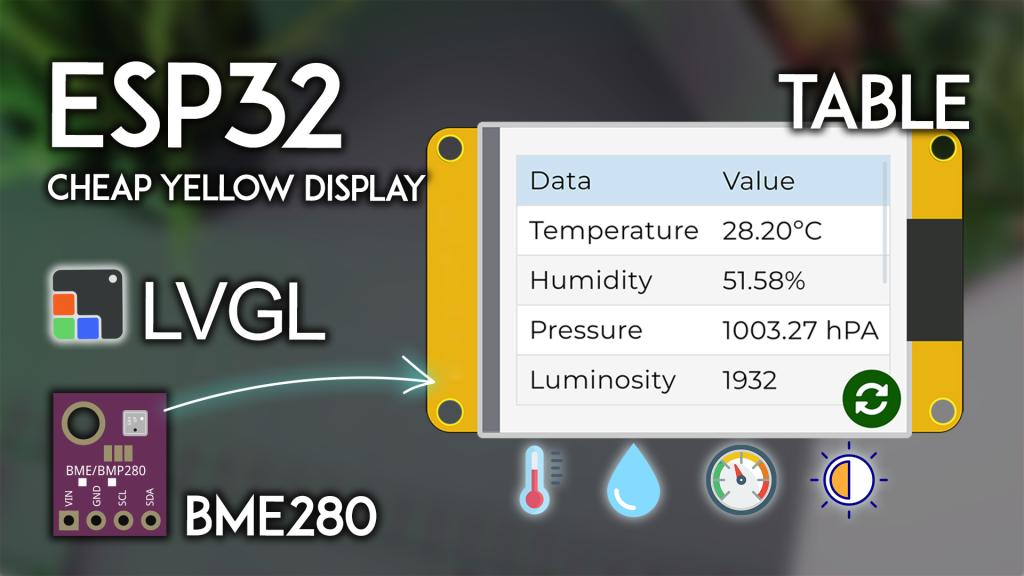
Project Overview: What You’ll Build
This project combines several powerful features into one cohesive dashboard:
-
LVGL data table: Displays sensor readings in a clean two-column format
-
Multiple sensors: BME280 (temperature, humidity, pressure) + CYD’s built-in LDR
-
Internet time: Fetches accurate date/time from WorldTimeAPI (Wi-Fi required)
-
IP address display: Shows the ESP32‘s local network address
-
Touch refresh: A floating button updates all values instantly
-
Auto-scaling: Temperature displayed in °C or °F (configurable)
Примечание: This project requires an internet connection to fetch the current date and time. If Wi-Fi isn’t available, you can omit the time feature or add an RTC module.
What You’ll Need: Complete Parts List
| Компонент | Количество | Цель | Где купить |
|---|---|---|---|
| Дешевый желтый дисплей ESP32 (CYD) | 1 | Main board with touchscreen & LDR | Check price |
| BME280 sensor module | 1 | Temperature, humidity, pressure | BME280 options |
| JST connector (included with CYD) | 1 | Connects sensor to CN1 header | Usually included |
| Jumper wires | 4 | For sensor connections | – |
| Wi-Fi router | 1 | For internet time (assumed available) | – |
👉 Find all components at the best prices here
Wiring the BME280 to CYD
Он CYD board includes a CN1 connector (JST) that provides access to additional GPIOs. Connect your BME280 sensor as follows:
| BME280 Pin | CYD CN1 Pin | ESP32 GPIO |
|---|---|---|
| ВЦК | 3,3 В | – |
| НД | НД | – |
| СДА | СДА | GPIO 27 |
| СКЛ | СКЛ | GPIO 22 |
Built-in LDR: The CYD already has a light-dependent resistor connected to GPIO 34—no external wiring needed.
Prerequisites: Setting Up Your Environment
Complete these essential setup steps in order:
1. ESP32 Board Support
If not already done, install ESP32 boards in Arduino IDE: Installing ESP32 Board in Arduino IDE.
2. Get Familiar with the CYD
First-time CYD user? Complete our Getting Started with ESP32 CYD guide. You’ll need to:
-
Install TFT_eSPI library
-
Configure the critical
User_Setup.hfile -
Test basic display functionality
3. Install LVGL for CYD
This project uses LVGL 9.x for the table interface. Follow our dedicated tutorial:
👉 LVGL with ESP32 Cheap Yellow Display
⚠️ CRITICAL: You must use the exact lv_conf.h file from that tutorial. Other configurations will нет work.
4. Install Required Libraries
Install these libraries via Arduino Library Manager (Sketch > Добавить библиотеку > Управление библиотеками):
| Библиотека | Версия | Цель |
|---|---|---|
| ArduinoJson by Benoit Blanchon | 7.0.4+ | Parse WorldTimeAPI JSON responses |
| Adafruit BME280 by Adafruit | Latest | Read BME280 sensor |
| Adafruit Unified Sensor | Latest | Dependency for BME280 |
| Adafruit Bus IO | Latest | Dependency for BME280 |
5. (Optional) Touchscreen Calibration
For the most accurate touch interaction with the refresh button, we recommend calibrating your touchscreen. Follow our ESP32 CYD Touchscreen Calibration Guide to get your specific calibration coefficients.
Complete Code: Sensor Data Table on CYD
Copy the following code into your Arduino IDE. You must modify two sections before uploading:
-
Wi-Fi credentials: Replace with your network SSID and password
-
Timezone: Set your timezone (e.g., “America/New_York”, “Europe/London”)
-
(Optional) Touch calibration: Replace placeholder values with your own
/*********
  ESP32 CYD with LVGL - BME280 Sensor Data Table
  Displays temperature, humidity, pressure, LDR, date, time, and IP
  Complete tutorial: https://RandomNerdTutorials.com/esp32-cyd-lvgl-display-bme280-data-table/
*********/

#включать <lvgl.h>
#включать <TFT_eSPI.h>
#включать <XPT2046_Touchscreen.h>
#включать <WiFi.h>
#включать <HTTPClient.h>
#включать <ArduinoJson.h>
#включать <Wire.h>
#включать <Adafruit_Sensor.h>
#включать <Adafruit_BME280.h>

// --- CONFIGURATION: YOU MUST EDIT THESE ---
константа чар* SSID = "YOUR_WIFI_SSID";          // Replace with your Wi-Fi name
константа чар* пароль = ""ВАШ_ПАРОЛЬ_WIFI"";  // Replace with your Wi-Fi password
константа чар* timezone = "Europe/Lisbon";       // Replace with your timezone (see list below)
// --- END CONFIGURATION ---

// Common timezone examples:
// "America/New_York", "America/Chicago", "America/Denver", "America/Los_Angeles"
// "Europe/London", "Europe/Paris", "Europe/Berlin", "Europe/Rome"
// "Asia/Tokyo", "Asia/Shanghai", "Asia/Singapore", "Australia/Sydney"

// --- BME280 Configuration ---
#определять I2C_SDA 27
#определять I2C_SCL 22
#определять SEALEVELPRESSURE_HPA (1013.25)
TwoWire I2CBME = TwoWire(0);
Adafruit_BME280 bme;

// Temperature unit: 1 = Celsius, 0 = Fahrenheit
#определять TEMP_CELSIUS 1

// --- LDR Pin (built-in) ---
#определять LDR_PIN 34

// --- Touchscreen Pins (CYD Standard) ---
#определять XPT2046_IRQ 36
#определять XPT2046_MOSI 32
#определять XPT2046_MISO 39
#определять XPT2046_CLK 25
#определять XPT2046_CS 33

Сенсорный экран SPIClass SPI = SPIClass(ВСПИ);
XPT2046_Сенсорный экран сенсорный экран(XPT2046_CS, XPT2046_IRQ);

// --- Display Dimensions ---
#определять ШИРИНА_ЭКРАНА 240
#определять ВЫСОТА_ЭКРАНА 320

// Touch coordinates
инт touchX, touchY, touchZ;

// LVGL draw buffer
#определять DRAW_BUF_SIZE (ШИРИНА_ЭКРАНА * ВЫСОТА_ЭКРАНА / 10 * (LV_COLOR_DEPTH / 8))
uint32_t draw_buf[DRAW_BUF_SIZE / 4];

// --- Global Variables for Date/Time ---
String current_date;
String current_time;

// --- LVGL Objects ---
static lv_obj_t * стол;
static lv_obj_t * refresh_btn;

// --- Function Declarations ---
пустота get_date_and_time();
пустота update_table_values();

// --- LVGL Logging ---
пустота log_print(lv_log_level_t level, константа чар * buf) {
  LV_UNUSED(level);
  Серийный номер.println(buf);
  Серийный номер.flush();
}

// --- Touchscreen Read Function for LVGL ---
пустота touchscreen_read(lv_indev_t * indev, lv_indev_data_t * данные) {
  если(сенсорный экран.tirqTouched() && сенсорный экран.тронут()) {
    TS_Point p = сенсорный экран.получить точку();

    // --- ADVANCED CALIBRATION (Recommended) ---
    // Replace these with your own values from the calibration guide!
    плавать альфа_х = -0.000;   // <<< REPLACE WITH YOUR VALUES
    плавать бета_х = 0.090;      // <<< REPLACE WITH YOUR VALUES
    плавать дельта_х = -33.771;   // <<< REPLACE WITH YOUR VALUES
    плавать альфа_й = 0.066;     // <<< REPLACE WITH YOUR VALUES
    плавать бета_й = 0.000;      // <<< REPLACE WITH YOUR VALUES
    плавать дельта_й = -14.632;   // <<< REPLACE WITH YOUR VALUES

    // Apply calibration and clamp to screen bounds
    touchX = альфа_й * p.x + бета_й * p.y + дельта_й;
    touchX = constrain(touchX, 0, ШИРИНА_ЭКРАНА - 1);

    touchY = альфа_х * p.x + бета_х * p.y + дельта_х;
    touchY = constrain(touchY, 0, ВЫСОТА_ЭКРАНА - 1);

    // --- BASIC CALIBRATION (Alternative) ---
    // If you haven't calibrated, uncomment these lines and comment the advanced section above
    // touchX = map(p.x, 200, 3700, 1, SCREEN_WIDTH);
    // touchY = map(p.y, 240, 3800, 1, SCREEN_HEIGHT);
    // touchX = constrain(touchX, 0, SCREEN_WIDTH - 1);
    // touchY = constrain(touchY, 0, SCREEN_HEIGHT - 1);

    touchZ = p.z;

    данные->состояние = LV_INDEV_STATE_PRESSED;
    данные->точка.x = touchX;
    данные->точка.y = touchY;

    // Optional debug
    // Serial.printf("Touch: X=%d, Y=%d, Z=%d\n", touchX, touchY, touchZ);
  } еще {
    данные->состояние = LV_INDEV_STATE_RELEASED;
  }
}

// --- Fetch Date and Time from WorldTimeAPI ---
пустота get_date_and_time() {
  HTTPClient http;
  String url = Нить("http://worldtimeapi.org/api/timezone/") + timezone;
  http.начинать(url);
  инт httpCode = http.GET();

  если (httpCode == HTTP_CODE_OK) {
    String payload = http.getString();
    JsonDocument doc;
    DeserializationError error = deserializeJson(doc, payload);

    если (!error) {
      константа чар* datetime = doc["datetime"];
      // Format: "2024-10-15T14:30:45.123456+01:00"
      если (datetime) {
        String dt = Нить(datetime);
        current_date = dt.substring(0, 10);  // YYYY-MM-DD
        current_time = dt.substring(11, 19); // HH:MM:SS (UTC)
      }
    }
  }
  http.конец();
}

// --- Refresh Button Event Handler ---
static пустота float_button_event_cb(lv_event_t * e) {
  update_table_values();
}

// --- Update All Table Values ---
static пустота update_table_values(пустота) {
  // Read BME280
  плавать temp = бме.readTemperature();
  плавать hum = бме.readHumidity();
  плавать pres = бме.readPressure() / 100.0F;

  // Convert temperature if needed
  #если TEMP_CELSIUS
    String temp_str = Нить(temp) + "" °C"";
  #еще
    temp = temp * 1.8 + 32;
    String temp_str = Нить(temp) + " °F";
  #endif

  String hum_str = Нить(hum) + " %";
  String pres_str = Нить(pres) + "" гПа"";

  // Read LDR (0-4095)
  String ldr_str = Нить(analogRead(LDR_PIN));

  // Get fresh time from API
  get_date_and_time();

  // Update table cells
  // Column 0 (labels)
  lv_table_set_cell_value(стол, 0, 0, "Data");
  lv_table_set_cell_value(стол, 1, 0, "Temperature");
  lv_table_set_cell_value(стол, 2, 0, "Humidity");
  lv_table_set_cell_value(стол, 3, 0, "Pressure");
  lv_table_set_cell_value(стол, 4, 0, "Luminosity");
  lv_table_set_cell_value(стол, 5, 0, "Date");
  lv_table_set_cell_value(стол, 6, 0, "Time");
  lv_table_set_cell_value(стол, 7, 0, "IP Address");

  // Column 1 (values)
  lv_table_set_cell_value(стол, 0, 1, "Value");
  lv_table_set_cell_value(стол, 1, 1, temp_str.c_str());
  lv_table_set_cell_value(стол, 2, 1, hum_str.c_str());
  lv_table_set_cell_value(стол, 3, 1, pres_str.c_str());
  lv_table_set_cell_value(стол, 4, 1, ldr_str.c_str());
  lv_table_set_cell_value(стол, 5, 1, current_date.c_str());
  lv_table_set_cell_value(стол, 6, 1, current_time.c_str());
  lv_table_set_cell_value(стол, 7, 1, Wi-Fi.локальный IP().toString().c_str());
}

// --- Draw Event Callback (for cell styling) ---
static пустота draw_event_cb(lv_event_t * e) {
  lv_draw_task_t * draw_task = lv_event_get_draw_task(e);
  lv_draw_dsc_base_t * base_dsc = (lv_draw_dsc_base_t*) draw_task->draw_dsc;

  если(base_dsc->part == LV_PART_ITEMS) {
    uint32_t row = base_dsc->id1;
    uint32_t col = base_dsc->id2;

    // Center-align the header row (row 0)
    если(row == 0) {
      lv_draw_label_dsc_t * label_draw_dsc = lv_draw_task_get_label_dsc(draw_task);
      если(label_draw_dsc) {
        label_draw_dsc->align = LV_TEXT_ALIGN_CENTER;
      }
    }
  }
}

// --- Create the LVGL User Interface ---
пустота create_ui() {
  // Create a table
  стол = lv_table_create(lv_screen_active());
  lv_obj_set_size(стол, 280, 200);
  lv_obj_align(стол, LV_ALIGN_CENTER, 0, -10);

  // Set column widths
  lv_table_set_column_width(стол, 0, 120);
  lv_table_set_column_width(стол, 1, 120);

  // Add custom draw event for styling
  lv_obj_add_event_cb(стол, draw_event_cb, LV_EVENT_DRAW_TASK_ADDED, NULL);

  // Create floating refresh button
  refresh_btn = lv_btn_create(lv_screen_active());
  lv_obj_set_size(refresh_btn, 50, 50);
  lv_obj_align(refresh_btn, LV_ALIGN_BOTTOM_RIGHT, -10, -10);
  lv_obj_add_event_cb(refresh_btn, float_button_event_cb, LV_EVENT_CLICKED, NULL);

  // Add refresh icon (simple label with LVGL symbol)
  lv_obj_t * btn_label = lv_label_create(refresh_btn);
  lv_label_set_text(btn_label, LV_SYMBOL_REFRESH);
  lv_obj_center(btn_label);

  // Initial table update
  update_table_values();
}

// --- Initialize BME280 Sensor ---
пустота initBME() {
  I2CBME.начинать(I2C_SDA, I2C_SCL, 100000);
  если (!бме.начинать(0x76, &I2CBME)) {
    Серийный номер.println("BME280 not found! Check wiring.");
    пока (1);
  }
  Серийный номер.println("BME280 initialized.");
}

// --- Connect to Wi-Fi ---
пустота connectWiFi() {
  Серийный номер.печать("Connecting to Wi-Fi");
  Wi-Fi.начинать(SSID, пароль);
  пока (Wi-Fi.статус() != WL_CONNECTED) {
    задерживать(500);
    Серийный номер.печать(".");
  }
  Серийный номер.println("\nWiFi connected. IP: " + Wi-Fi.локальный IP().toString());
}

// --- Setup ---
пустота настраивать() {
  Серийный номер.начинать(115200);
  Серийный номер.println("ESP32 CYD Sensor Data Table Starting...");

  // Connect to Wi-Fi
  connectWiFi();

  // Инициализация BME280
  initBME();

  // Инициализация сенсорного экрана
  сенсорный экранSPI.начинать(XPT2046_CLK, XPT2046_MISO, XPT2046_MOSI, XPT2046_CS);
  сенсорный экран.начинать(сенсорный экранSPI);
  сенсорный экран.setRotation(1); // Landscape orientation

  // Initialize LVGL
  lv_init();
  lv_log_register_print_cb(log_print);

  // Инициализация дисплея
  lv_display_t * disp = lv_tft_espi_create(ШИРИНА_ЭКРАНА, ВЫСОТА_ЭКРАНА,
                                            draw_buf, sizeof(draw_buf));
  lv_display_set_rotation(disp, LV_DISPLAY_ROTATION_270);

  // Initialize touch input for LVGL
  lv_indev_t * indev = lv_indev_create();
  lv_indev_set_type(indev, LV_INDEV_TYPE_POINTER);
  lv_indev_set_read_cb(indev, touchscreen_read);

  // Create the UI
  create_ui();

  Серийный номер.println("Ready. Table updates on refresh button press.");
}

// --- Main Loop ---
пустота петля() {
  lv_task_handler();
  lv_tick_inc(5);
  задерживать(5);
}
How the Code Works
1. Wi-Fi and Time Fetching
Он ESP32 connects to your Wi-Fi network and queries the WorldTimeAPI for the current date/time in your specified timezone. The API returns a JSON string, which we parse using ArduinoJson to extract the date and time.
2. Sensor Reading
-
BME280: Reads temperature, humidity, and pressure via I2C
-
LDR: Reads the built-in light sensor on GPIO 34 (analog value 0-4095)
3. LVGL Table
The table is created with lv_table_create() and has two columns:
-
Column 0: Labels (Data, Temperature, Humidity, etc.)
-
Column 1: Current values (updated on refresh)
4. Touch Refresh Button
A floating button with a refresh icon (LV_SYMBOL_REFRESH) calls update_table_values() when clicked, fetching fresh sensor readings and time.
5. Cell Styling
Он draw_event_cb() function centers the text in the header row (row 0) for a cleaner look.
Testing Your Sensor Data Table
-
Replace your Wi-Fi credentials and timezone in the configuration section
-
Загрузить the code to your ESP32 CYD
-
Открытый последовательный монитор (115200 baud) to see connection status
-
Observe the display—after connecting to Wi-Fi, the table should populate with:
-
Temperature, humidity, pressure from BME280
-
Luminosity value from built-in sensor
-
Current date and time (from API)
-
Your ESP32’s IP address
-
-
Tap the refresh button (bottom right) to update all values
Troubleshooting
| Проблема | Likely Solution |
|---|---|
| No sensor data | Check BME280 wiring (SDA→27, SCL→22) |
| “–:–” for time | Verify Wi-Fi credentials and timezone string |
| Table not updating | Check touch calibration or use basic mapping |
| Compilation errors | Ensure LVGL and TFT_eSPI are configured correctly (see prerequisites) |
| IP shows 0.0.0.0 | Wi-Fi connection failed—check credentials and router |
Taking It Further: Project Enhancements
This foundation opens many possibilities:
Add Data Logging to SD Card
The CYD has a microSD slot. Log all readings with timestamps for later analysis.
Create Historical Trends
Use LVGL charts to show temperature or humidity over time (see our line chart tutorial).
Add More Sensors
Connect additional I2C sensors (e.g., air quality, CO2) and add rows to the table.
Make It Battery Powered
Power from a USB power bank for portable environmental monitoring.
Send Data to the Cloud
Forward readings to MQTT, Blynk, or a web server for remote monitoring.
Where to Buy Components
Ready to build your own sensor data dashboard?
-
ESP32 Cheap Yellow Display (CYD) – Main display unit
-
BME280 Sensor Module – For temperature, humidity, and pressure
👉 Check all components and best prices here
Заключение
You’ve just built a professional-grade sensor data dashboard on the Дешевый желтый дисплей ESP32 using LVGL. This project demonstrates:
-
Tabular data presentation with LVGL’s table widget
-
Multiple sensor integration (BME280 + built-in LDR)
-
Internet time fetching via WorldTimeAPI
-
Touch-based refresh for user interaction
-
Clean, organized display of environmental data
This same pattern can display any kind of structured data—from weather stations to industrial monitoring systems. The ESP32 CYD and LVGL make it surprisingly easy to create polished, interactive dashboards.
Get your components today and start building your own data display!
======================================