
Сенсорная кнопка ESP32 CYD: создайте элемент управления включением/выключением для ваших IoT-проектов.
Want to add a simple, tactile touch control to your next IoT project without complex wiring? The Дешевый желтый дисплей ESP32 (CYD) makes it incredibly easy. In this project, you’ll build a working touchscreen on/off button that controls the board’s built-in RGB LED—a perfect foundation for controlling lights, motors, or any other output in your smart home or automation projects.
Why Build a Touchscreen Button on the ESP32 CYD?
Он ESP32-2432S028R (Дешевый желтый дисплей) combines a powerful ESP32 chip with a 2.8-inch TFT touchscreen, all on one board. Creating a touchscreen button teaches you core concepts you can reuse in any GUI project:
-
Direct hardware control – Turn outputs on/off with a finger tap
-
Visual feedback – Buttons change color to show state
-
Touch coordinate mapping – Understand how screen touches translate to actions
-
Modular code – Easy to adapt for multiple buttons or different outputs
This project is your first step toward building smart home dashboards, industrial controls, or interactive displays.
What You’ll Need
Аппаратное обеспечение
-
Дешевый желтый дисплей ESP32 (CYD) – Model ESP32-2432S028R
👉 Check current prices and buy here -
USB cable (data transfer capable)
-
Computer with Arduino IDE installed
Software & Libraries
You’ll need these Arduino libraries:
-
TFT_eSPIby Bodmer – Display driver -
XPT2046_Сенсорный экранby Paul Stoffregen – Touch driver
New to the CYD? First follow our ESP32 CYD Getting Started Guide to set up your board and configure the required
User_Setup.hfile. The code below won’t compile without the proper configuration.
Project Overview: How the On/Off Button Works
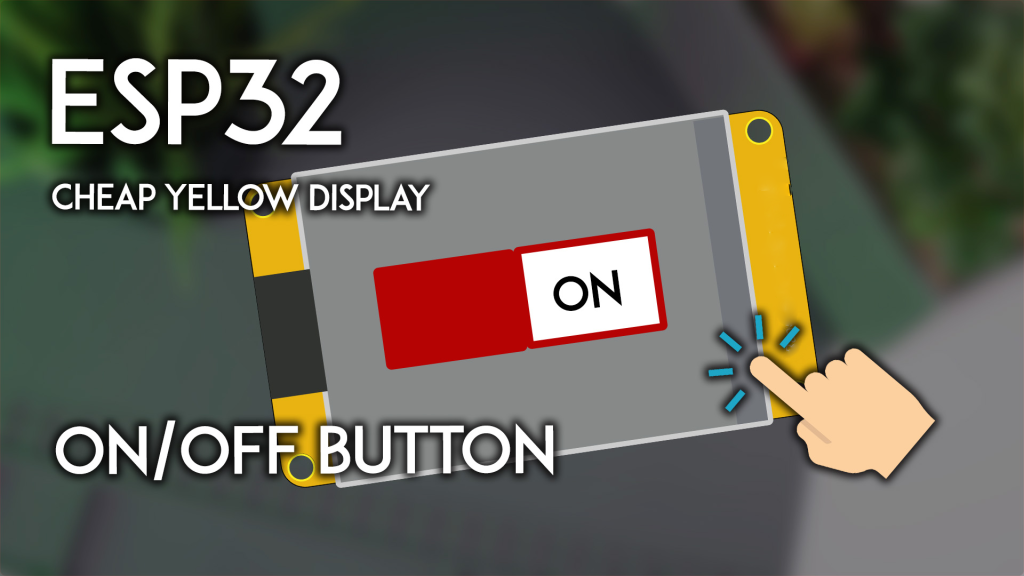
The finished project displays a single button that toggles between ON (green) и OFF (red) states. Tapping the green area turns the LED on; tapping the red area turns it off. The button provides clear visual feedback by changing color and the text label.
What you’ll learn:
-
Drawing interactive touch zones on the screen
-
Reading and calibrating touchscreen coordinates
-
Using touch input to control GPIO pins
-
Creating responsive visual feedback
Complete Code: Touchscreen On/Off Button
Copy this code into your Arduino IDE and upload it to your ESP32 CYD.
/*  ESP32 CYD Touchscreen On/Off Button
    Controls the built-in green RGB LED with a graphical button
    Complete details: https://RandomNerdTutorials.com/touchscreen-on-off-button-cheap-yellow-display-esp32-2432s028r/
*/

#включать <SPI.h>
#включать <TFT_eSPI.h>                 // Отображение библиотеки
#включать <XPT2046_Touchscreen.h>      // Библиотека сенсорного управления

TFT_eSPI tft = TFT_eSPI();

// Определения PIN-кодов сенсорного экрана для CYD
#определять XPT2046_IRQ 36
#определять XPT2046_MOSI 32
#определять XPT2046_MISO 39
#определять XPT2046_CLK 25
#определять XPT2046_CS 33

Сенсорный экран SPIClass SPI = SPIClass(ВСПИ);
XPT2046_Сенсорный экран сенсорный экран(XPT2046_CS, XPT2046_IRQ);

// Display dimensions (landscape mode)
#определять ШИРИНА_ЭКРАНА 320
#определять ВЫСОТА_ЭКРАНА 240
#определять FONT_SIZE 3

// Button frame position and size
#определять FRAME_X 60
#определять FRAME_Y 60
#определять FRAME_W 200
#определять FRAME_H 120

// Red (OFF) button area
#определять REDBUTTON_X FRAME_X
#определять REDBUTTON_Y FRAME_Y
#определять REDBUTTON_W (FRAME_W / 2)
#определять REDBUTTON_H FRAME_H

// Green (ON) button area
#определять GREENBUTTON_X (REDBUTTON_X + REDBUTTON_W)
#определять GREENBUTTON_Y FRAME_Y
#определять GREENBUTTON_W (FRAME_W / 2)
#определять GREENBUTTON_H FRAME_H

// Onboard RGB LED pins
#определять CYD_LED_GREEN 16    // We'll control the green LED
#определять CYD_LED_RED 4       // (Not used in this example)
#определять CYD_LED_BLUE 17     // (Not used in this example)

// Touch coordinates and pressure
инт touchX, touchY, touchZ;

// Current button state: false = OFF (green button showing), true = ON (red button showing)
bool buttonState = ЛОЖЬ;

// Helper: Print touch data to Serial Monitor
пустота printTouchToSerial(инт x, инт y, инт z) {
  Серийный номер.печать(""X = ""); Серийный номер.печать(x);
  Серийный номер.печать("" | Y = ""); Серийный номер.печать(y);
  Серийный номер.печать("" | Давление = ""); Серийный номер.println(z);
}

// Draw the button frame (black outline)
пустота drawFrame() {
  тфт.drawRect(FRAME_X, FRAME_Y, FRAME_W, FRAME_H, TFT_BLACK);
}

// Draw the "OFF" state (red button on left, green area blank)
пустота drawRedButton() {
  тфт.fillRect(REDBUTTON_X, REDBUTTON_Y, REDBUTTON_W, REDBUTTON_H, TFT_RED);
  тфт.fillRect(GREENBUTTON_X, GREENBUTTON_Y, GREENBUTTON_W, GREENBUTTON_H, TFT_WHITE);
  drawFrame();
  тфт.setTextColor(TFT_BLACK);
  тфт.setTextSize(FONT_SIZE);
  тфт.setTextDatum(MC_DATUM);
  тфт.drawString("OFF", REDBUTTON_X + (REDBUTTON_W / 2), REDBUTTON_Y + (REDBUTTON_H / 2));
  buttonState = истинный;   // Now showing OFF button (red)
}

// Draw the "ON" state (green button on right, red area blank)
пустота drawGreenButton() {
  тфт.fillRect(GREENBUTTON_X, GREENBUTTON_Y, GREENBUTTON_W, GREENBUTTON_H, TFT_GREEN);
  тфт.fillRect(REDBUTTON_X, REDBUTTON_Y, REDBUTTON_W, REDBUTTON_H, TFT_WHITE);
  drawFrame();
  тфт.setTextColor(TFT_BLACK);
  тфт.setTextSize(FONT_SIZE);
  тфт.setTextDatum(MC_DATUM);
  тфт.drawString("ON", GREENBUTTON_X + (GREENBUTTON_W / 2), GREENBUTTON_Y + (GREENBUTTON_H / 2));
  buttonState = ЛОЖЬ;  // Now showing ON button (green)
}

пустота настраивать() {
  Серийный номер.начинать(115200);
  Серийный номер.println("ESP32 CYD Touchscreen Button Starting...");

  // Инициализация сенсорного экрана
  сенсорный экранSPI.начинать(XPT2046_CLK, XPT2046_MISO, XPT2046_MOSI, XPT2046_CS);
  сенсорный экран.начинать(сенсорный экранSPI);
  // Set landscape orientation (adjust if your touch is reversed)
  сенсорный экран.setRotation(1);  // Try 3 if touches are upside-down

  // Инициализация дисплея
  тфт.инициализация();
  тфт.setRotation(1);           // Горизонтальный режим
  тфт.fillScreen(TFT_BLACK);

  // Draw initial button (LED starts OFF)
  drawGreenButton();

  // Configure LED pin
  pinMode(CYD_LED_GREEN, ВЫХОД);
  digitalWrite(CYD_LED_GREEN, НИЗКИЙ);  // Start with LED off
}

пустота петля() {
  // Check for touch
  если (сенсорный экран.tirqTouched() && сенсорный экран.тронут()) {
    TS_Point p = сенсорный экран.получить точку();

    // Сопоставление исходных значений касания с экранными координатами
    // These mapping values work for most CYD boards; adjust if needed
    touchX = карта(p.x, 200, 3700, 1, ШИРИНА_ЭКРАНА);
    touchY = карта(p.y, 240, 3800, 1, ВЫСОТА_ЭКРАНА);
    touchZ = p.z;

    printTouchToSerial(touchX, touchY, touchZ);

    // State machine: buttonState tracks which button is currently shown
    если (buttonState) {
      // Currently showing OFF button (red) – waiting for tap on green ON area
      Серийный номер.println("State: OFF button visible");
      если ((touchX > GREENBUTTON_X) && (touchX < (GREENBUTTON_X + GREENBUTTON_W)) &&
          (touchY > GREENBUTTON_Y) && (touchY <= (GREENBUTTON_Y + GREENBUTTON_H))) {
        Серийный номер.println(">> Green (ON) area tapped - Turning LED ON");
        drawGreenButton();               // Change display to ON button
        digitalWrite(CYD_LED_GREEN, ВЫСОКИЙ); // Turn LED on
      }
    } еще {
      // Currently showing ON button (green) – waiting for tap on red OFF area
      Серийный номер.println("State: ON button visible");
      если ((touchX > REDBUTTON_X) && (touchX < (REDBUTTON_X + REDBUTTON_W)) &&
          (touchY > REDBUTTON_Y) && (touchY <= (REDBUTTON_Y + REDBUTTON_H))) {
        Серийный номер.println(">> Red (OFF) area tapped - Turning LED OFF");
        drawRedButton();                  // Change display to OFF button
        digitalWrite(CYD_LED_GREEN, НИЗКИЙ);  // Turn LED off
      }
    }
    задерживать(200);  // Простая задержка
  }
}
Understanding the Key Parts
1. Touch Detection and Mapping
The touchscreen returns raw analog values (typically 200–3800). The map() function converts these to screen pixel coordinates:
touchX = карта(p.x, 200, 3700, 1, ШИРИНА_ЭКРАНА);
touchY = карта(p.y, 240, 3800, 1, ВЫСОТА_ЭКРАНА);
Примечание: These values work for most CYD boards. If touches are misaligned, you may need to calibrate your screen (see our touch calibration guide).
2. Button Areas
The screen is divided into two touch zones:
-
Green button (ON) – Right half of the frame
-
Red button (OFF) – Left half of the frame
The code checks if a touch falls within these rectangular regions.
3. Visual State Feedback
The button appearance changes instantly:
-
ON state: Green button visible, red area blank
-
OFF state: Red button visible, green area blank
This gives clear, intuitive feedback that the system registered your touch.
4. Output Control
The built-in green LED (GPIO 16) turns on/off with the button. You can easily modify the code to control:
-
External relays via GPIO pins
-
Other LEDs (red/blue channels for RGB)
-
Virtual outputs in a connected IoT dashboard
Testing Your Project
-
Upload the code to your ESP32 CYD
-
Открытый последовательный монитор (115200 baud) to see touch coordinates
-
Tap the green area – The button should change to “OFF” and the green LED on the back of the board should light up
-
Tap the red area – The button changes back to “ON” and the LED turns off
If touches don’t align with buttons:
-
Попробуйте изменить
touchscreen.setRotation(1)к3внастраивать() -
Adjust the mapping values (the numbers in
map()functions)
Taking It Further: Project Ideas
This simple button is the foundation for countless real-world projects:
Smart Home Light Switch
Replace the LED control with a relay module connected to GPIO pins. Build a sleek wall-mounted touch panel to control room lights.
Motor Control Panel
Add more buttons to create a machine control interface. Use sliders for speed control (see our LVGL guide for advanced widgets).
Security System Keypad
Create a touch-based code entry system. Use multiple buttons and check combinations to trigger an output.
IoT Dashboard
Combine with Wi-Fi to control devices over the internet. The button could send MQTT messages to smart home hubs.
Build your first touchscreen control today—order your ESP32 CYD and start creating!
======================================