
Полное руководство по созданию веб-сервера для потоковой передачи видео с использованием ESP32-CAM и Arduino IDE.
Он ESP32-CAM is a powerful, low-cost module that combines an ESP32-S microcontroller with an OV2640 camera, enabling you to create a video streaming web server accessible from any browser on your local network. While an older example in the Arduino library once offered built-in face recognition, the current standard method focuses on reliable, real-time video streaming as a foundation for your own projects. This comprehensive 2026 guide, built on years of hands-on testing with ESP32 hardware, will walk you through every step—from wiring and uploading code to accessing your live stream and troubleshooting common issues.
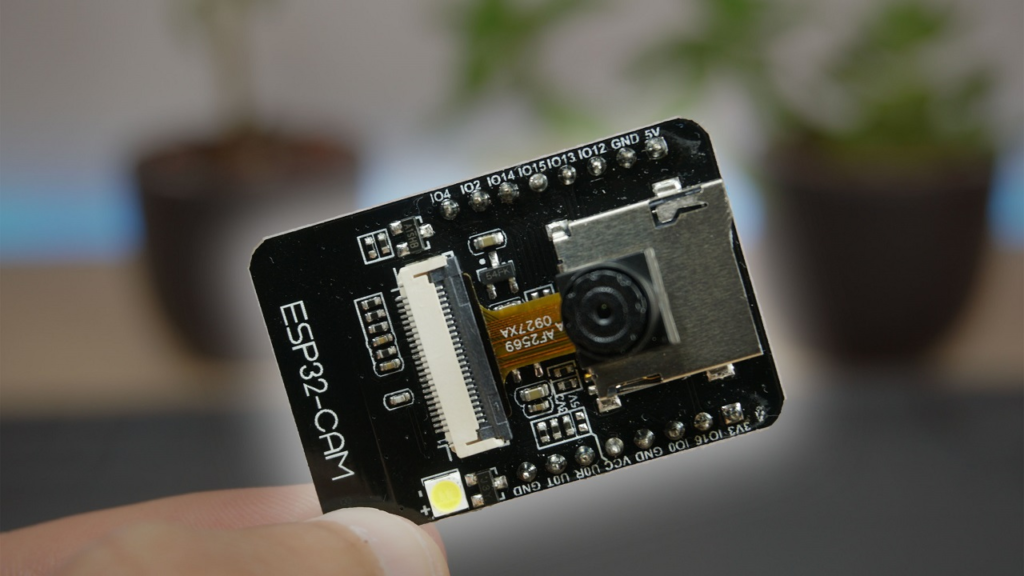
Introduction to the ESP32-CAM: Capabilities and Hardware
Он ESP32-CAM, notably the popular AI-Thinker variant, packs significant features into a tiny, sub-$10 module:
-
Core Processor: A low-power 32-bit ESP32-S chip, clockable up to 160MHz.
-
Подключение: Built-in 802.11 b/g/n Wi-Fi and Bluetooth for wireless communication.
-
Memory: 520KB internal SRAM and 4MB external PSRAM (crucial for image processing).
-
Camera: Integrated OV2640 sensor capable of JPEG output at various resolutions.
-
Хранилище: A microSD card slot for saving photos or video clips.
-
GPIOs: Multiple pins for UART, SPI, I2C, PWM, and ADC, allowing connection to sensors and actuators.
Critical Hardware Setup and Pinout
A key challenge is that the ESP32-CAM lacks a built-in USB port. You must use an external programmer, such as an FTDI module or a dedicated ESP32-CAM-MB USB adapter.
Power Warning: Он ESP32-CAM can be power-hungry, especially when the flash LED is active. Always use a stable 5V power source connected to the 5 В pin. Using 3.3V or an underpowered USB port is a leading cause of instability and boot failures.
For programming, these are the essential connections to an FTDI programmer:
| ESP32-CAM Приколоть | FTDI Programmer Pin | Примечания |
|---|---|---|
| 5 В | VCC (5V) | Power source. Ensure jumper on FTDI is set to 5V. |
| НД | НД | Common ground. |
| U0T (TX) | РКС | Serial Transmit. |
| U0R (RX) | TX | Serial Receive. |
| GPIO 0 | НД | Must be connected to GND ONLY during code upload to enable flashing mode. |
⚠️ Важно: After uploading your code, you must disconnect GPIO 0 from GND for the board to boot normally. A simple way to manage this is to use a jumper wire that you can remove after programming.
Step-by-Step Project Setup
Step 1: Install the ESP32 Board in Arduino IDE
Before writing code, you must add ESP32 support to the Arduino IDE.
-
Open Arduino IDE (v2.x or later is recommended).
-
Go to
Файл > Настройки. In the “Additional Boards Manager URLs” field, enter:https://espressif.github.io/arduino-esp32/package_esp32_index.json -
Navigate to
Инструменты > Плата > Диспетчер плат..., search for “esp32“, and install the “ESP32 by Espressif Systems” package.
Step 2: Prepare and Configure the Example Code
The Arduino-ESP32 core includes an excellent example for camera streaming.
-
Go to
File > Examples > ESP32 > Cameraand open theCameraWebServerexample. -
Configure Your Network: Find these lines and insert your Wi-Fi credentials:
константа чар* SSID = "YOUR_NETWORK_NAME";
константа чар* пароль = "YOUR_NETWORK_PASSWORD";
-
Select Your Camera Model: Find the camera model definitions. For the common AI-Thinker module, comment out other models and ensure this line is active:
// #define CAMERA_MODEL_WROVER_KIT
// #define CAMERA_MODEL_ESP_EYE
#определять CAMERA_MODEL_AI_THINKER // Make sure this line is NOT commented
Step 3: Upload the Code to the ESP32-CAM
This is the most critical and often problematic step. Follow meticulously:
-
Connect Wires: Assemble the circuit as shown in the table above, ensuring GPIO 0 is connected to GND.
-
Select Board and Port: In the Arduino IDE:
-
Tools > Board > ESP32 Arduino> Select “AI-Thinker ESP32-CAM“. -
Инструменты > Порт> Choose the correct COM port for your FTDI programmer.
-
-
Upload: Click the upload button. As the code compiles and uploads, you may see “Connecting…” in the status bar. If it hangs, press the physical RST (Reset) button on the ESP32-CAM доска. This often triggers the upload to proceed.
-
Finalize: After a successful “Done uploading” message:
-
Disconnect the GPIO 0 wire from GND.
-
Open the Serial Monitor (
Инструменты > Последовательный монитор). -
Установите скорость передачи данных на 115200.
-
Нажмите RST button again. The board will boot, connect to Wi-Fi, and print its IP address (например,
192.168.1.105) to the Serial Monitor. Copy this address.
-
Accessing Your Video Streaming Web Server
On any device connected to the same local Wi-Fi network (phone, laptop, tablet):
-
Open a web browser (Chrome, Firefox, Safari).
-
In the address bar, type the IP address you copied from the Serial Monitor.
-
You should see the ESP32-CAM web interface. Click “Start Streaming” to begin the live video feed.
Interface Features:
-
Start Streaming / Stop Streaming: Controls the live MJPG video feed.
-
Get Still: Captures and displays a single high-resolution JPEG photo.
-
Resolution Dropdown: Change the video stream resolution (e.g., UXGA, SVGA, VGA). Lower resolutions like VGA (640×480) provide a smoother frame rate.
-
Quality and Brightness Sliders: Adjust various image parameters in real-time.
-
Face Detection: The current version of the library typically includes a basic “Face Detection” toggle. This draws boxes around detected faces but does not include “Face Recognition” (identifying specific individuals) by default. Adding recognition requires significant additional coding and training, which is beyond the scope of this foundational example.
In-Depth Code Explanation and Customization
Understanding the key parts of the CameraWebServer example empowers you to modify it.
1. Camera Initialization
Он настраивать() function initializes the camera with a predefined configuration (config).
camera_config_t config;
config.ledc_channel = LEDC_CHANNEL_0;
config.ledc_timer = LEDC_TIMER_0;
config.pin_d0 = 5;
config.pin_d1 = 18;
// ... (more pin assignments)
config.frame_size = FRAMESIZE_SVGA; // Default stream resolution
config.jpeg_quality = 12; // Quality (0-63, lower is better)
config.fb_count = 2; // Number of frame buffers

// Init Camera
esp_err_t err = esp_camera_init(&config);
если (err != ESP_OK) {
  Серийный номер.printf("Camera init failed with error 0x%x", err);
  возвращаться;
}
2. The Streaming Server
The example creates an asynchronous web server that handles multiple connections efficiently. When you access the root (/) URL, it serves the HTML/JavaScript page that contains the video viewer and controls. The /stream endpoint delivers the continuous Motion-JPEG (MJPEG) video feed, which is simply a stream of JPEG images.
Simple Modification: Saving a Photo to microSD Card
You can extend the example to save “Get Still” photos. First, ensure the SD card is formatted as FAT32 and inserted. Add this function and modify the server handler for the still capture:
#включать "SD_MMC.h" // Include the SD library

пустота настраивать() {
  // ... after camera init
  если(!SD_MMC.начинать()){
    Серийный номер.println("SD Card Mount Failed");
    возвращаться;
  }
}

// In the server handler for the still image request:
{
  camera_fb_t * fb = esp_camera_fb_get(); // capture frame
  если(!fb) { /* handle error */ }

  // Save file
  String path = "/photo_" + Нить(миллис()) + ".jpg";
  File file = SD_MMC.open(path.c_str(), FILE_WRITE);
  если(file){
    file.писать(fb->buf, fb->len);
    file.close();
    Серийный номер.println("Photo saved: " + path);
  }
  esp_camera_fb_return(fb); // return frame buffer
}
Troubleshooting: Fixing Common ESP32-CAM Issues
Here are solutions to the most frequent problems, based on extensive community experience:
| Problem & Error Message | Вероятная причина | Решение |
|---|---|---|
| “Не удалось подключиться к ESP32“ / Timeout | Incorrect flashing mode. | Ensure GPIO 0 is permanently connected to GND during the entire upload process. Press RST if upload doesn’t start. |
| “Camera init failed with error 0x20001” | Incorrect power, wrong camera model, or loose camera ribbon cable. | 1. Use a 5V, 2A+ power supply. 2. Double-check the camera model selection in code. 3. Reseat the camera’s ribbon cable. |
| “Brownout detector was triggered” | Insufficient power supply. | The module draws a large current spike. Use a dedicated 5V power source, not your computer’s USB port through the FTDI. |
| PSRAM not found / Guru Meditation Error | Wrong board selection or PSRAM disabled. | In IDE: Инструменты > Доска must be “AI-Thinker ESP32-CAM“. Ensure Tools > PSRAM is set to “Enabled”. |
| Sketch Too Big / Wrong Partition Scheme | Incorrect flash partitioning. | In IDE: Tools > Partition Scheme choose “Huge APP (3MB No OTA)“. |
| IP Address Not Showing | Wrong Wi-Fi credentials, weak signal. | Check SSID/password. Press RST after upload. Ensure GPIO 0 is disconnected from GND. |
| Stream is Laggy or Choppy | High resolution, network congestion, slow serial monitor. | 1. Lower the stream resolution in the web interface. 2. Ensure the ESP32 is on a strong Wi-Fi signal. 3. Close the Arduino Serial Monitor after getting the IP, as it consumes resources. |
Beyond Basic Streaming: Project Ideas
Your working video server is a launchpad for advanced IoT projects:
-
Home Security Monitor: Combine with a PIR motion sensor to capture and save photos to the SD card upon movement detection, then email them via IFTTT.
-
Baby/Pet Monitor: Integrate audio streaming and embed the video feed into a custom dashboard like Node-RED.
-
Time-Lapse Photography: Modify the code to take a picture every minute and save it to the SD card.
-
Video Doorbell: Add a doorbell button that triggers a photo capture and sends a notification to your phone.
This guide provides the foundational expertise to deploy a robust ESP32-CAM video streaming server. By methodically following the hardware, code, and troubleshooting steps, you transform an inexpensive module into a versatile eye for your Internet of Things projects. The journey from a bare board to a live video feed encapsulates the power and accessibility of modern embedded systems.
======================================