
Полное руководство по использованию 0,96-дюймового OLED-дисплея (SSD1306) с ESP8266 и Arduino IDE
Он 0.96-inch OLED display based on the SSD1306 driver is a favorite among IoT hobbyists for its crisp visibility, low power consumption, and ease of use. When paired with the versatile ESP8266, it becomes a powerful tool for creating standalone data dashboards, sensor readouts, or smart device interfaces.
This comprehensive tutorial goes beyond basic “Hello World” examples. You’ll learn how to set up the hardware, install the necessary libraries, display text and graphics, and integrate the display into practical projects—all within the familiar Arduino IDE.
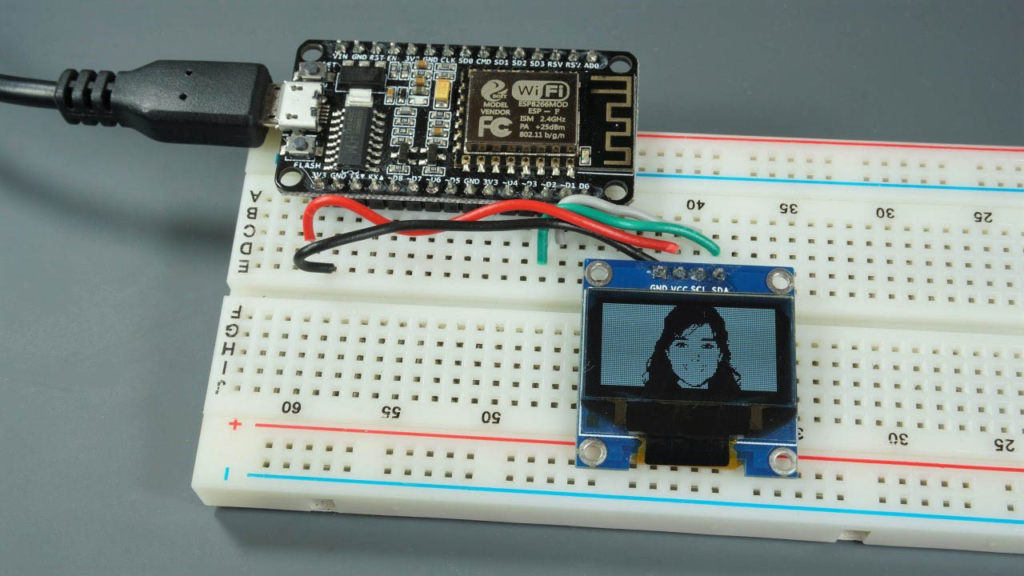
1. Understanding Your OLED Display: The SSD1306
Он SSD1306 OLED is a monochrome, 128×64 pixel display. Its key advantages make it ideal for ESP8266 projects:
-
No Backlight Required: Unlike LCDs, OLEDs are self-emissive, offering perfect black levels and high contrast, especially in low-light conditions.
-
Низкое энергопотребление: Pixels only draw power when they are on, making it excellent for battery-powered ESP8266 проекты.
-
Communication Protocols: Commonly available in I2C (4-pin) or СПИ (6-7 pin) variants. The I2C version is simpler, using only two data pins, and is the focus of this guide.
2. Hardware Wiring: Connecting ESP8266 to the OLED (I2C)
The I2C connection is straightforward. You only need four wires. It’s critical to connect the display’s VCC to the ESP8266‘s 3.3V pin, as 5V will likely damage it.
Here is the standard wiring table:
| OLED Display Pin | ESP8266 GPIO Pin (NodeMCU/D1 Mini) | ESP8266 Physical Pin |
|---|---|---|
| ВЦК | 3,3 В | 3.3V Power Pin |
| НД | НД | Ground Pin |
| СКЛ (Clock) | GPIO 5 (D1) | Digital Pin D1 |
| СДА (Data) | GPIO 4 (D2) | Digital Pin D2 |
Why GPIO 4 and 5? On most ESP8266 boards, these pins are the default I2C pins and are not used by other critical functions like bootstrapping or SPI flash, ensuring stable communication.
Quick Troubleshooting Tip: If the display doesn’t light up, first double-check the I2C address. While the default is 0x3C, some modules use 0x3D. Use a simple I2C scanner sketch to confirm.
3. Software Setup: Installing Libraries in Arduino IDE
Before writing code, you need two core libraries from Adafruit:
-
Adafruit SSD1306: The hardware-specific driver for the OLED.
-
Adafruit GFX: A core graphics library that handles shapes, text, and fonts.
Installation Steps:
-
Open Arduino IDE.
-
Navigate to Sketch > Include Library > Manage Libraries….
-
In the Library Manager, search for “Adafruit SSD1306” and install it.
-
Next, search for “Adafruit GFX” and install it.
-
Ensure you have the ESP8266 board package installed. If not, add it via Файл > Настройки by entering
http://arduino.esp8266.com/stable/package_esp8266com_index.jsoninto the “Additional Boards Manager URLs” field, then install from Tools > Board > Boards Manager.
4. First Test: Running the Built-in Example
The quickest way to verify your setup is to run a library example.
-
Go to File > Examples > Adafruit SSD1306.
-
Select the example matching your display size and connection (e.g.,
ssd1306_128x64_i2c). -
Before uploading, ensure you have:
-
Selected your ESP8266 board (e.g., NodeMCU 1.0) under Инструменты > Доска.
-
Selected the correct COM port under Инструменты > Порт.
-
-
Upload the sketch. You should see a sequence of graphics and animations on your display, confirming everything works.
5. Writing Your Own Code: Core Functions Explained
Let’s break down the essential functions to control the display.
Initialization:
#включать <Wire.h>
#включать <Adafruit_GFX.h>
#включать <Adafruit_SSD1306.h>

#определять ШИРИНА_ЭКРАНА 128
#определять ВЫСОТА_ЭКРАНА 64
#определять OLED_RESET -1 // If your display has a reset pin, define its GPIO here

Adafruit_SSD1306 display(ШИРИНА_ЭКРАНА, ВЫСОТА_ЭКРАНА, &Wire, OLED_RESET);

пустота настраивать() {
  // Initialize with I2C address 0x3C
  если(!display.начинать(SSD1306_SWITCHCAPVCC, 0x3C)) {
    Серийный номер.println(F("SSD1306 allocation failed"));
    для(;;); // Halt forever on failure
  }
  display.display(); // Show the Adafruit splash screen
  задерживать(2000);
  display.clearDisplay(); // Clear the buffer for new drawings
}
Basic Text Display:
пустота displayText() {
  display.clearDisplay();

  display.setTextSize(1);        // Normal 1:1 pixel scale (6x8px font)
  display.setTextColor(SSD1306_WHITE); // Draw white text
  display.setCursor(0, 0);       // Top-left corner
  display.println("Hello, World!");

  display.setTextSize(2);
  display.setCursor(0, 20);
  display.println("2X Size");

  display.setTextColor(SSD1306_BLACK, SSD1306_WHITE); // Inverse text
  display.setCursor(0, 45);
  display.println(" Inverse ");

  display.display(); // This command MUST be called to make changes visible
}
Drawing Shapes:
The Adafruit GFX library provides simple functions for drawing:
пустота drawShapes() {
  display.clearDisplay();
  // Draw a rectangle (x, y, width, height, color)
  display.drawRect(10, 10, 50, 30, SSD1306_WHITE);
  // Fill a circle (centerX, centerY, radius, color)
  display.fillCircle(90, 25, 15, SSD1306_WHITE);
  // Draw a line (x1, y1, x2, y2, color)
  display.drawLine(0, 0, 127, 63, SSD1306_WHITE);
  display.display();
}
6. Practical Project Ideas
Once you master the basics, integrate the OLED into real applications:
-
IoT Sensor Dashboard: Connect a DHT11/DHT22 sensor and display real-time temperature and humidity readings.
-
Wi-Fi Signal Strength Meter: Use
WiFi.RSSI()to get the signal strength and display it as a number or a visual bar graph. -
Clock with NTP: Synchronize time via Network Time Protocol (NTP) and create a sleek digital clock that updates automatically.
-
API Data Display: Have your ESP8266 fetch data from a public API (like weather or cryptocurrency prices) and show it on the screen.
Example Snippet for Sensor Data:
// After reading from a sensor (e.g., temperature)
плавать temp = readTemperature();
display.clearDisplay();
display.setTextSize(1);
display.setCursor(0,0);
display.печать("Temperature:");
display.setTextSize(2);
display.setCursor(0, 20);
display.печать(temp);
display.печать(" C");
display.display();
7. Advanced Tips & Troubleshooting
-
Memory Constraints: The ESP8266 has limited RAM. Use
F()macro to store constant strings in program memory (Flash) instead of RAM:display.println(F("Static Text")); -
Avoid
delay()in Animations: For smooth animations or updating sensor data, usemillis()for non-blocking timing to keep the ESP8266 responsive. -
Display is Blank or Garbled?
-
Verify all connections, especially НД.
-
Confirm the I2C address with a scanner sketch.
-
Ensure the correct
display.begin(...)address is used in your code. -
Check that
display.display()is being called after your drawing commands.
-
Сочетание ESP8266 и SSD1306 OLED opens a world of possibilities for creating interactive, informative projects with a professional look. Start with the basics, experiment with the graphics library, and soon you’ll be building custom interfaces for all your IoT gadgets.
Feel free to share your creations or ask specific questions in the comments below! What will you display on your OLED screen first?
======================================