
Полное руководство по ESP32 Bluetooth Classic: создавайте практичные беспроводные проекты с помощью Arduino IDE.
Are you looking for a reliable, high-bandwidth, and easy-to-implement wireless communication solution for your IoT projects? Compared to complex Wi-Fi setup and the BLE protocol stack, the built-in Bluetooth Classic functionality of the ESP32 offers a reliable alternative that’s as simple as using serial communication.
This comprehensive guide will take you from zero to proficient, teaching you how to leverage the powerful Bluetooth Classic feature of the ESP32 using the Arduino IDE for real-world applications. We’ll not only cover basic data exchange but also build a complete bi-directional communication system: controlling an LED on the ESP32 from your smartphone and receiving real-time sensor data from the ESP32 on your phone.
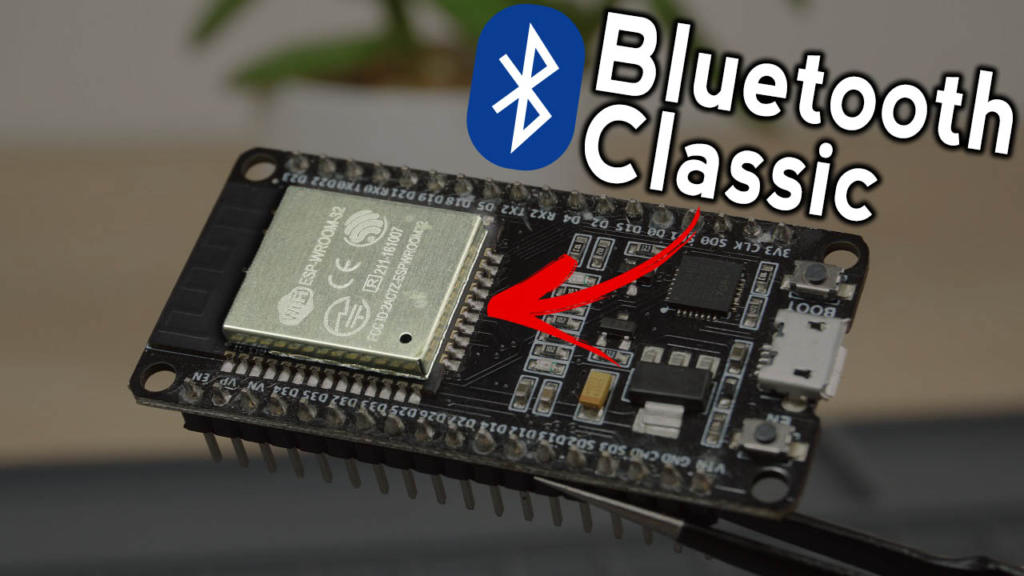
Part 1: Understanding ESP32 Bluetooth Classic — Why Choose It?
Он ESP32 is a powerful microcontroller, and one of its key features is integrated dual-mode Bluetooth. Understanding the difference between the two modes is the first step to making the right choice.
-
Bluetooth Classic: Ideal for continuous, higher data rate communication. It’s commonly used for audio streaming (e.g., Bluetooth speakers), file transfer, and traditional serial data communication (SPP). Its development model is extremely simple, almost zero-learning-curve for users familiar with Arduino
Серийный номер, essentially acting as a wireless serial cable. -
Bluetooth Low Energy (BLE): Optimized for intermittent, small data packet transmission with very low power consumption. Often used in beacons, health devices, etc. Its development involves Services and Characteristics, which is more complex.
For projects that require simple command control, continuous data logging transmission, or where you are migrating from modules like HC-05/06, Bluetooth Classic is the most straightforward and efficient choice.
Core Advantages for Developers:
-
Simple Protocol: Uses the Serial Port Profile (SPP), compatible with most Bluetooth serial terminal apps.
-
High Compatibility: Universally supported by Android, Windows, Linux, and other systems.
-
Familiar API: In Arduino IDE, it uses the
BluetoothSeriallibrary, and its functions (read(),write(),print(),available()) are almost identical to the standardСерийный номерobject, making it very easy to learn.
Part 2: Getting Started: Hardware, Software, and Basic Communication
2.1 Prerequisites
-
Аппаратное обеспечение: An ESP32 development board (like ESP32 DevKit V1), a micro-USB cable, and an Android smartphone.
-
Программное обеспечение:
-
Arduino IDE (version 1.8.x or 2.0+).
-
ESP32 Board Support Package installed in Arduino IDE. You can install it via:
File->Настройки-> Enterhttps://raw.githubusercontent.com/espressif/arduino-esp32/gh-pages/package_esp32_index.jsonin “Additional Boards Manager URLs” ->Tools->Доска->Менеджер по советам директоров-> Search for “esp32” and install. -
Android App: Install a “Serial Bluetooth Terminal” app (e.g., the “Serial Bluetooth Terminal” by Kai Morich on Google Play Store).
-
2.2 First Test: Serial Bridge
The Arduino IDE for ESP32 comes with excellent examples. Let’s run the simplest one to verify your environment.
-
Open Arduino IDE, go to
File->Examples->BluetoothSerial->SerialToSerialBT. -
An example code will open. This code creates a bidirectional bridge between the hardware serial port (UART) and Bluetooth.
-
Upload the code to your ESP32. Ensure you’ve selected the correct board and port under the
Toolsmenu. -
Откройте Последовательный монитор (
Tools->Последовательный монитор), set the baud rate to 115200. Press the EN/RST button on the ESP32. -
You should see the message: “The device started, now you can pair it with bluetooth!”
Pairing and Connection:
-
On your Android phone, open Настройки -> Bluetooth, search for new devices. You should find a device named “ESP32test” (the default name in the code). Pair with it.
-
Open the “Serial Bluetooth Terminal” app. Click the connect icon (usually a Bluetooth symbol) and select “ESP32test” from the list.
-
Test Communication:
-
Type a message in the app and send it. You will see it appear in the Arduino IDE Serial Monitor.
-
Type a message in the Serial Monitor’s input bar and press send. You will see it appear on your phone.
-
Congratulations! You have established a basic wireless serial link.
Part 3: Building a Practical Bi-Directional Control & Monitoring Project
Now, let’s build a more practical application. We will create a system where:
-
Он ESP32 reads temperature from a DS18B20 sensor and sends it to the smartphone every 10 seconds.
-
The smartphone can send
led_onиled_offcommands to control an LED connected to the ESP32.
3.1 Circuit Connection
| Компонент | ESP32 GPIO Pin |
|---|---|
| LED (with 220Ω resistor) | GPIO 25 |
| DS18B20 Data Pin | GPIO 32 |
| DS18B20 VCC | 3,3 В |
| DS18B20 GND | НД |
*Note: The DS18B20 is a 1-Wire digital temperature sensor. A 4.7kΩ pull-up resistor is recommended between its Data pin and VCC, though many modules already include it.*
3.2 Installing Required Libraries
In Arduino IDE, open Tools -> Manage Libraries... and install:
-
OneWire Пол Стоффреген
-
DallasTemperature by Miles Burton
3.3 The Complete Arduino Sketch
Below is the well-commented code that implements all the functionalities. You can copy and upload it after installing the libraries and setting up the circuit.
/*
 * ESP32 Bluetooth Classic: Sensor & Control Project
 * Reads temperature from DS18B20 and sends to phone.
 * Controls LED based on 'led_on'/'led_off' commands from phone.
 */

#включать "BluetoothSerial.h"
#включать <OneWire.h>
#включать <DallasTemperature.h>

// Configuration check for Bluetooth
#если !defined(CONFIG_BT_ENABLED) || !defined(CONFIG_BLUEDROID_ENABLED)
#error Bluetooth is нет enabled! Please run 'make menuconfig' to enable it
#endif

// Initialize Bluetooth Serial object
BluetoothSerial SerialBT;

// Pin Definitions
константа инт ledPin = 25;       // GPIO for LED
константа инт oneWireBus = 32;   // GPIO for DS18B20 data

// Setup for DS18B20 sensor
OneWire oneWire(oneWireBus);
DallasTemperature датчики(&oneWire);

// Variables for data handling
String incomingMessage = "";     // Stores the command from phone
плавать tempC, tempF;              // Holds temperature values
без подписи длинный previousMillis = 0;// Timer for periodic updates
константа длинный interval = 10000;     // Send data every 10 seconds (10000 ms)

пустота настраивать() {
  // Initialize hardware
  pinMode(ledPin, ВЫХОД);
  digitalWrite(ledPin, НИЗКИЙ); // Start with LED off
  Серийный номер.начинать(115200);

  // Initialize temperature sensor
  датчики.начинать();

  // Start Bluetooth with a custom name
  SerialBT.начинать("ESP32_Climate_Controller"); // Rename your device!
  Серийный номер.println("Bluetooth device is ready for pairing. Name: 'ESP32_Climate_Controller'");
}

пустота петля() {
  без подписи длинный currentMillis = миллис();

  // TASK 1: Send temperature readings periodically
  если (currentMillis - previousMillis >= interval) {
    previousMillis = currentMillis; // Save the last time we sent data

    датчики.requestTemperatures(); // Send command to get temperatures
    tempC = датчики.getTempCByIndex(0); // Read temperature in Celsius
    tempF = датчики.getTempFByIndex(0); // Convert to Fahrenheit

    // Create a formatted string
    String dataString = "Temperature: " + Нить(tempC) + "°C | " + Нить(tempF) + "°F";

    // Send via Bluetooth and print to Serial Monitor for debugging
    SerialBT.println(dataString);
    Серийный номер.println("Sent: " + dataString);
  }

  // TASK 2: Check for incoming commands from phone
  если (SerialBT.доступный()) { // If data is available to read from Bluetooth
    чар incomingChar = SerialBT.читать(); // Read a single character
    Серийный номер.писать(incomingChar); // Echo it to Serial Monitor (for debugging)

    если (incomingChar != ''\n'') {
      // If it's not the end-of-line character, add it to the message string
      incomingMessage += incomingChar;
    } еще {
      // End of line -> a complete command has been received
      incomingMessage.trim(); // Remove any extra whitespace (like carriage return '\r')

      Серийный номер.печать("Command Received: '");
      Серийный номер.печать(incomingMessage);
      Серийный номер.println("'");

      // Process the command
      если (incomingMessage == "led_on") {
        digitalWrite(ledPin, ВЫСОКИЙ);
        SerialBT.println("LED Status: ON"); // Send confirmation back to phone
        Серийный номер.println("LED turned ON.");
      } еще если (incomingMessage == "led_off") {
        digitalWrite(ledPin, НИЗКИЙ);
        SerialBT.println("LED Status: OFF");
        Серийный номер.println("LED turned OFF.");
      } еще {
        // If the command is not recognized, send an error message
        SerialBT.println("ERROR: Unknown command. Use 'led_on' or 'led_off'.");
        Серийный номер.println("Unknown command received.");
      }

      incomingMessage = ""; // Clear the string to receive the next command
    }
  }

  // Small delay to prevent overwhelming the processor
  задерживать(20);
}
3.4 How It Works & Testing
-
Upload the Code: After wiring, upload the sketch to your ESP32.
-
Monitor Serial: Open the Serial Monitor (115200 baud). You’ll see the ready message.
-
Connect Phone: On your phone’s Bluetooth settings, forget the old “ESP32test” and pair with the new “ESP32_Climate_Controller”. Connect via the Serial Bluetooth Terminal app.
-
Automatic Data Reception: You should see temperature readings appear in the terminal app every 10 seconds.
-
Send Control Commands: In the app’s text input field, type
led_onand send. The LED on GPIO 25 should light up, and you’ll receive a “LED Status: ON” confirmation on the phone. Sendingled_offwill turn it off.
Part 4: Expanding Your Project & Advanced Considerations
You’ve built a fundamental framework. Here’s how to extend it and tackle common challenges.
4.1 Project Expansion Ideas
-
Control Multiple Outputs: Add more LEDs, relays, or servos. Use commands like
relay1_on,servo_90. -
Send More Sensor Data: Integrate a DHT22 (humidity), BMP180 (pressure), or motion sensor (PIR). Format and send all data as a JSON string for easy parsing on a phone app (e.g.,
{"temp":23.5, "humidity":65}). -
Create a Simple Chatbot: Program the ESP32 to respond to specific questions (e.g., “temp?” -> it sends temperature; “status?” -> it sends GPIO states).
-
Log Data to Phone: Let the phone app log all received sensor data to a file for long-term analysis.
4.2 Troubleshooting Common Issues
| Проблема | Possible Cause | Решение |
|---|---|---|
| “Bluetooth is not enabled” Compile Error | ESP32 board package not configured for Bluetooth. | In Arduino IDE, select a different ESP32 board variant (e.g., “ESP32 Dev Module”) and ensure Bluetooth is enabled in the core libraries (it is by default). |
| Phone Can’t Find ESP32 | 1. ESP32 not in pairing mode. 2. Already paired/connected to another device. |
1. Ensure the sketch with SerialBT.begin() is running.2. On the phone, forget old ESP32 pairings and restart the ESP32. |
| Connection Drops Intermittently | Weak signal or out of range (Classic range is typically ~10m unobstructed). | Keep devices within range. Avoid major physical obstructions. |
| Data Corruption/Garbage Characters | Baud rate mismatch or buffer overflow. | Ensure the Serial Monitor and code use the same baud rate (115200). Add small delay() в петля to prevent CPU from being swamped. |
| Commands Not Working | Hidden characters (like \r или \n) appended by the terminal app. |
Использовать .trim() on the incomingMessage string (as done in the code) to remove them, or configure the app to send only the raw text. |
4.3 Bluetooth Classic vs. BLE: When to Choose What?
-
Choose Bluetooth Classic if: You need continuous data streaming, are sending larger packets (e.g., files, images for displays), prioritize development simplicity, or need compatibility with traditional serial protocols.
-
Choose BLE if: Your project is battery-powered and needs to run for months, only needs to send tiny bursts of data occasionally (like a sensor reading every minute), or needs to interact with modern smartphones in a standardized, low-power way (like iBeacon).
Заключение
You have now successfully harnessed the power of ESP32‘s Bluetooth Classic. You’ve moved from a simple serial bridge to a practical, bi-directional control and monitoring system. The key takeaway is that BluetoothSerial makes wireless communication as intuitive as writing to a serial port.
The framework provided here is a springboard. By integrating different sensors and actuators, and processing commands creatively, you can build anything from a wireless weather station to a smart home controller. Remember to explore the BluetoothSerial library documentation for advanced features like checking connection status or setting a PIN code.
Next Steps: Challenge yourself to modify the code to control a servo motor or send data from multiple sensors. To dive deeper into the ESP32‘s other wireless capability, consider exploring our tutorial on ESP32 Wi-Fi as a Web Server for controlling devices over your local network through a browser.
======================================