
Полное руководство по использованию карты microSD на ESP32: запись данных, обработка файлов и код для Arduino.
Introduction: Unlock Expanded Storage for Your ESP32 Projects
Он ESP32 is a powerful microcontroller, but its internal memory is limited. Adding a microSD card is a transformative upgrade that enables advanced applications like extensive data logging, serving large files for web servers, or storing multimedia. This comprehensive tutorial demonstrates how to reliably connect, configure, and program a microSD card module with the ESP32 using the Arduino IDE.
Building on foundational knowledge, this guide provides practical, tested instructions and expert insights to help both beginners and experienced developers implement robust external storage solutions.
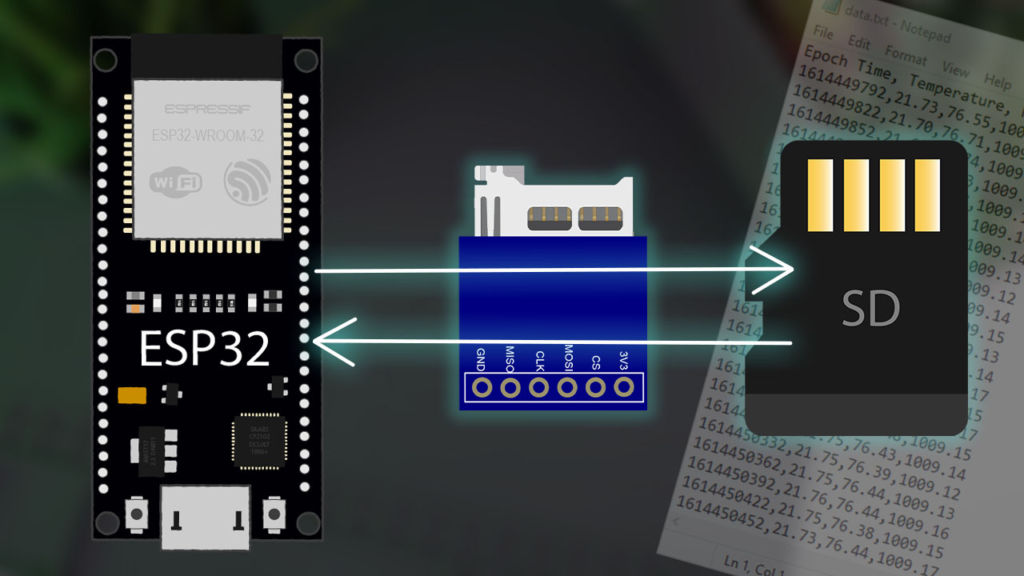
Understanding the Hardware: MicroSD Card Modules and SPI Communication
Most microSD card modules for microcontrollers use the SPI (последовательный периферийный интерфейс) protocol for its simplicity and broad compatibility. The module shown in this guide is a common SPI-based model that works seamlessly with the ESP32, Arduino boards, and ESP8266.
Expert Tip: While the SPI protocol is widely used, the ESP32 also supports a faster SDMMC (SD/SDIO/MMC) hardware protocol via its dedicated SD/SDIO/MMC controller. This requires different wiring (using the ESP32‘s GPIOs 6, 7, 8, 9, 10, 11) and the
SD_MMC.hlibrary. For most projects, the SPI method offers the best balance of simplicity and sufficient speed.
Essential Components and Wiring
To follow this guide, you will need:
-
Ан ESP32 совет по развитию (e.g., DOIT ESP32 DevKit V1, NodeMCU-32S).
-
A microSD card module (SPI).
-
A microSD card (formatted as FAT32).
-
Jumper wires and a breadboard.
The connection between the module and the ESP32 uses the default ВСПИ pins of the ESP32.
| MicroSD Card Module Pin | ESP32 GPIO Pin |
|---|---|
| 3V3 (VCC) | 3,3 В |
| CS (Chip Select) | GPIO 5 |
| MOSI (Master Out Slave In) | GPIO 23 |
| CLK (SCK Clock) | GPIO 18 |
| MISO (Master In Slave Out) | GPIO 19 |
| НД | НД |
Crucial Connection Advice: Always use the 3,3 В pin on the ESP32 to power the module. Applying 5V will likely damage both the module and your ESP32. Ensure your microSD card is formatted as FAT32 (not exFAT or NTFS) for compatibility with the Arduino SD library.
Step-by-Step Software Setup and Core Code Explanation
1. Preparing Your Arduino IDE and Libraries
Ensure your Arduino IDE is set up for the ESP32. You can install the ESP32 board support via the Boards Manager. The necessary libraries (FS.h, SD.h, SPI.h) are included in the ESP32 Arduino core by default—no separate installation is needed.
2. Core Arduino Code for File Operations
The following code, adapted from the SD_Test example in the Arduino IDE, provides a complete toolkit for handling files. It is thoroughly commented to explain both the “how” and the “why.”
/*
 * Complete ESP32 microSD Card File Operations Example
 * Based on the SD_Test example from the ESP32 Arduino Core
 * Includes detailed explanations for each function.
 */

#включать "FS.h"
#включать "SD.h"
#включать "SPI.h"

пустота listDir(fs::FS &fs, константа чар * dirname, uint8_t levels) {
  Серийный номер.printf("Listing directory: %s\n", dirname);
  File root = fs.open(dirname);
  если(!root){
    Серийный номер.println("Failed to open directory");
    возвращаться;
  }
  если(!root.isDirectory()){
    Серийный номер.println("Not a directory");
    возвращаться;
  }
  File file = root.openNextFile();
  пока(file){
    если(file.isDirectory()){
      Серийный номер.печать("  DIR : ");
      Серийный номер.println(file.name());
      если(levels){
        listDir(fs, file.name(), levels -1); // Recursive call for subdirectories
      }
    } еще {
      Серийный номер.печать("  FILE: ");
      Серийный номер.печать(file.name());
      Серийный номер.печать("  SIZE: ");
      Серийный номер.println(file.размер());
    }
    file = root.openNextFile();
  }
}

пустота createDir(fs::FS &fs, константа чар * path) {
  Серийный номер.printf("Creating Dir: %s\n", path);
  если(fs.мкдир(path)){
    Серийный номер.println("Dir created");
  } еще {
    Серийный номер.println("mkdir failed");
  }
}

пустота readFile(fs::FS &fs, константа чар * path) {
  Серийный номер.printf("Reading file: %s\n", path);
  File file = fs.open(path);
  если(!file){
    Серийный номер.println("Failed to open file for reading");
    возвращаться;
  }
  Серийный номер.печать("Read from file: ");
  пока(file.доступный()){
    Серийный номер.писать(file.читать()); // Read and output byte by byte
  }
  Серийный номер.println(); // New line for cleaner output
  file.close();
}

пустота writeFile(fs::FS &fs, константа чар * path, константа чар * message) {
  Серийный номер.printf("Writing file: %s\n", path);
  File file = fs.open(path, FILE_WRITE);
  если(!file){
    Серийный номер.println("Failed to open file for writing");
    возвращаться;
  }
  если(file.печать(message)){
    Серийный номер.println("File written");
  } еще {
    Серийный номер.println("Write failed");
  }
  file.close();
}

пустота appendFile(fs::FS &fs, константа чар * path, константа чар * message) {
  Серийный номер.printf("Appending to file: %s\n", path);
  // FILE_APPEND mode ensures existing content is preserved
  File file = fs.open(path, FILE_APPEND);
  если(!file){
    Серийный номер.println("Failed to open file for appending");
    возвращаться;
  }
  если(file.печать(message)){
    Серийный номер.println("Message appended");
  } еще {
    Серийный номер.println("Append failed");
  }
  file.close();
}

пустота настраивать() {
  Серийный номер.начинать(115200);
  задерживать(1000); // Short delay for stability

  // Initialize SD card with the CS pin connected to GPIO 5
  если(!SD.начинать(5)){
    Серийный номер.println("Card Mount Failed. Check: Wiring, CS pin, Card Format (FAT32).");
    возвращаться; // Stop setup if initialization fails
  }

  // Identify the type of SD card inserted
  uint8_t cardType = SD.cardType();
  если(cardType == CARD_NONE){
    Серийный номер.println("No SD card attached");
    возвращаться;
  }
  Серийный номер.печать("SD Card Type: ");
  если(cardType == CARD_MMC) Серийный номер.println("MMC");
  еще если(cardType == CARD_SD) Серийный номер.println("SDSC");
  еще если(cardType == CARD_SDHC) Серийный номер.println("SDHC");
  еще Серийный номер.println("UNKNOWN");

  // Display card size information
  uint64_t cardSize = SD.cardSize() / (1024 * 1024);
  uint64_t usedSpace = SD.usedBytes() / (1024 * 1024);
  Серийный номер.printf("SD Card Size: %lluMB\n", cardSize);
  Серийный номер.printf("Used space: %lluMB\n", usedSpace);
  Серийный номер.printf("Free space: %lluMB\n", cardSize - usedSpace);

  // --- Execute File Operations ---
  listDir(SD, "/", 0); // List root directory
  createDir(SD, "/mydir");
  writeFile(SD, "/mydir/hello.txt", "Hello from the ESP32!\n");
  appendFile(SD, "/mydir/hello.txt", "This is an appended line.");
  readFile(SD, "/mydir/hello.txt");
  Серийный номер.println("All demo operations completed.");
}

пустота петля() {
  // Can be used for ongoing data logging tasks
  // Example: appendFile(SD, "/data.log", "Sensor reading: ...\n");
  // delay(5000);
}
3. Uploading and Testing
After wiring your hardware:
-
Insert a formatted FAT32 microSD card into the module.
-
Upload the code to your ESP32.
-
Откройте Serial Monitor (115200 baud).
-
You should see the card information print, followed by a demonstration of directory creation, writing, appending, and reading.
Practical Applications and Project Integration
Moving beyond basic examples, here are practical ways to use microSD storage:
-
Sensor Data Logging: Create a timestamped CSV file to save temperature, humidity, or motion sensor readings over days or weeks. Use the
appendFilefunction in theпетля()to add new rows. -
Web Server Asset Storage: Store HTML, CSS, JavaScript, and image files on the SD card to create a rich, standalone web server interface for your ESP32.
-
Firmware Updates or Configuration Files: Store updated firmware binaries or device configuration (JSON files) on the card, allowing the ESP32 to read and apply settings without reflashing.
Устранение распространенных проблем
Even with correct wiring, issues can arise. Here are solutions based on common pitfalls:
| Symptom | Likely Cause & Solution |
|---|---|
| “Card Mount Failed” | • Wiring: Double-check MISO, MOSI, SCK, and CS connections. • Власть: Ensure you’re using the ESP32’s 3.3V pin. • Card Format: Reformat the card as FAT32. |
| “No SD card attached” | • The module cannot detect the card. Reseat the microSD card. • Try a different, known-good microSD card (some brands/models have compatibility issues). |
| File Write/Read Fails | • Ensure the file path is correct (case-sensitive). • The card might be write-protected (check the physical lock switch on full-size adapters). |
| Random Resets or Crashes | • The SD card draws significant current during writes. Add a 100-470µF electrolytic capacitor between the module’s VCC and GND pins to stabilize power. |
Заключение и дальнейшие шаги
Integrating a microSD card with your ESP32 via SPI is a straightforward process that dramatically expands your project’s capabilities for data-intensive tasks. By following the wiring, formatting, and code guidelines above, you have a solid foundation.
To deepen your knowledge, explore the official ESP32 SD/SDIO/MMC Driver documentation from Espressif for low-level details. Experiment with the SD_MMC library for potential performance gains if your hardware supports it.
This guide is designed not just to make your project work, but to help you understand the underlying principles for reliable and effective data storage solutions with the ESP32.
======================================