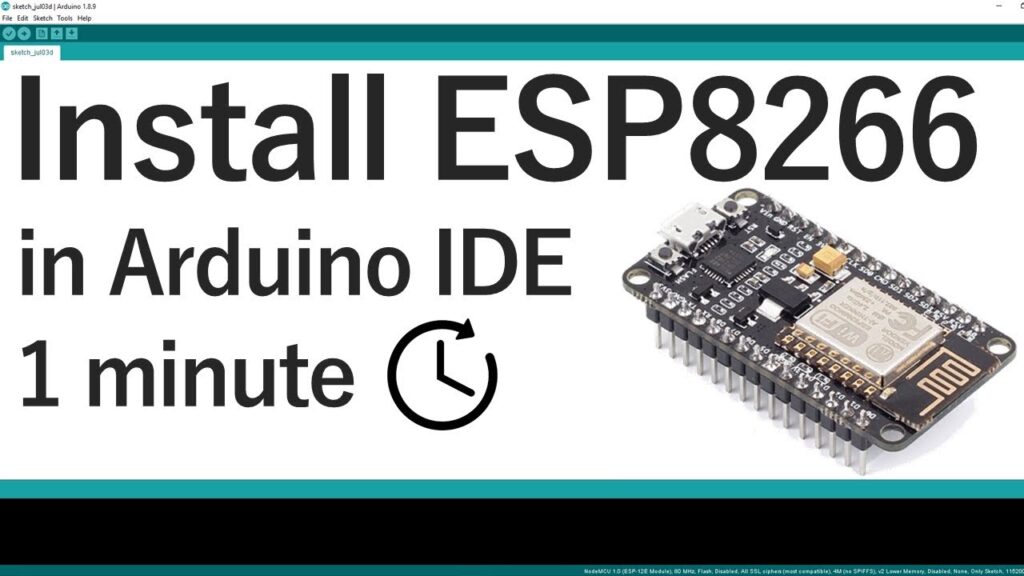
The Complete Guide to Installing the ESP8266 Board in Arduino IDE (2026 Update)
Prerequisites: What You Need Before Starting
Before proceeding with the ESP8266 board installation, ensure you have these components ready:
Latest Arduino IDE: Download version 2.3.0 or newer from the official Arduino website. Older versions (particularly pre-1.6.4) lack essential framework support for ESP8266.
ESP8266 Development Board: Popular options include NodeMCU (ESP-12E), Wemos D1 Mini, or ESP-01. Each has slightly different programming requirements.
USB Cable: For boards with built-in USB-to-serial converters (like NodeMCU).
FTDI Programmer: Required for boards without USB interfaces (like ESP-01).
Drivers: Depending on your chipset, you may need CP210x or CH340 drivers. We provide updated links in our troubleshooting section.
Critical Note for Linux Users: The Arduino IDE in some Linux repositories (like Ubuntu) may be outdated. Always download directly from Arduino.cc rather than using package managers to avoid version conflicts.
Step-by-Step Installation Process
1. Configure Board Manager URLs
Launch Arduino IDE and navigate to File → Preferences (Windows/Linux) or Arduino IDE → Preferences (macOS).
In the “Additional Boards Manager URLs” field, enter:
Locate “ESP8266 by ESP8266 Community” (this is the official package)
Click the “Install” button
The installation typically takes 2-5 minutes depending on your internet connection. You’ll see a progress bar indicating the download and installation of:
Version Note: As of January 2026, version 3.1.2 is stable. We recommend against using “latest” (development) versions for beginners due to potential instability.
3. Select Your Specific Board
After installation completes, navigate to Tools → Board → ESP8266 Boards. You’ll find approximately 30 different board variants. Selecting the correct one is crucial:
NodeMCU 1.0 (ESP-12E Module): Most common for development boards
Wemos D1 R2 & mini: For Wemos/LOLIN boards
Generic ESP8266 Module: For custom or unidentified boards
ESP-01 Series: For the minimal 8-pin modules
Each selection automatically configures the optimal Flash Size, CPU Frequency, Upload Speed, and other parameters. For generic modules, you may need to adjust these settings manually based on your chip’s specifications.
Verifying Installation with LED Blink Test
Hardware Connections
For NodeMCU/ESP-12E boards with built-in LED:
Built-in LED typically connects to GPIO2 (marked as D4 on NodeMCU)
No external components needed
Simply connect via USB cable
For external LED test:
text
ESP8266 GPIO2 → 220Ω resistor → LED anode (+)
LED cathode (-) → ESP8266 GND
For ESP-01 boards:
Requires FTDI programmer with these connections:
ESP8266 RX → FTDI TX
ESP8266 TX → FTDI RX
ESP8266 CH_PD → 3.3V
ESP8266 GPIO0 → GND (during programming only!)
ESP8266 VCC → 3.3V (NOT 5V!)
ESP8266 GND → FTDI GND
Critical Voltage Warning: ESP8266 is a 3.3V device. Applying 5V will permanently damage the chip. Most FTDI programmers have a 3.3V/5V switch—ensure it’s set to 3.3V.
Upload the Test Sketch
Copy this complete blink sketch:
cpp
/*
ESP8266 Blink Test
Compatible with all ESP8266 boards
Turns built-in LED on for 1 second, then off for 1 second
Complete project details: https://RandomNerdTutorials.com
*/#defineLED_BUILTIN2// Most ESP8266 boards use GPIO2 for built-in LEDvoidsetup(){pinMode(LED_BUILTIN, OUTPUT);// Initialize GPIO2 as output}voidloop(){digitalWrite(LED_BUILTIN, LOW);// Turn LED ON (active LOW on many boards)delay(1000);digitalWrite(LED_BUILTIN, HIGH);// Turn LED OFFdelay(1000);}
Board-Specific Note: Some boards (like Wemos D1 Mini) have active-high LEDs. If your LED behaves opposite expected, swap HIGH/LOW states in the code.
Upload Process
Select correct COM port (Tools → Port)
Click upload button (right arrow icon)
Observe progress in bottom status bar
Expected success message: “Done uploading”
For ESP-01 and boards without auto-reset: You may need to manually toggle power or press reset after upload.
Comprehensive Troubleshooting Guide
Connection Issues
“Failed to connect to ESP8266: Timed out waiting for packet header”
This indicates incorrect programming mode:
Ensure GPIO0 is grounded during upload
Cycle power to the board
Try different USB cables (some charge-only cables don’t transmit data)
Check for loose connections in breadboard setups
“COM Port not found/not available”
Driver issues are the most common cause:
After successful installation, consider these learning paths:
WiFi Connectivity: Learn STA and AP modes with our WiFi tutorials
Web Server: Create control panels accessible from any browser
MQTT Protocol: For IoT home automation systems
Deep Sleep: Battery optimization for wireless sensors
OTA Updates: Wireless programming without USB cables
Frequently Asked Questions (Expert Answers)
Q: Can I use both ESP8266 and ESP32 boards simultaneously?
A: Yes, both can coexist in Arduino IDE. Each maintains separate board definitions, libraries, and toolchains. Switch between them via Tools → Board menu.
Q: Why does my ESP-01 require different procedures?
A: ESP-01 lacks USB-to-serial conversion and auto-reset circuitry. It requires manual boot mode control (GPIO0 to GND) and an external programmer.
Q: Is Arduino IDE the best platform for ESP8266?
A: For beginners, yes. For advanced users, PlatformIO (VSCode extension) offers superior dependency management and debugging, but with steeper learning curve.
Q: How do I recover a board that won’t program?
A: Use esptool.py directly to erase flash: esptool.py --port COMx erase_flash. Then retry standard programming.
Q: What about Mac Silicon (M1/M2/M3) compatibility?
A: Arduino IDE 2.x runs natively on Apple Silicon. ESP8266 toolchains are fully compatible through Rosetta 2 if needed.
Conclusion
Installing ESP8266 support in Arduino IDE opens doors to affordable, capable IoT development. While the process has matured since 2019, attention to driver installation, board selection, and proper wiring remains crucial. This guide reflects seven years of collective troubleshooting experience—bookmark it for future reference.
Since 2016, ESP32S.com has grown to become a complete ecosystem partner for your IoT journey. Based in Shenzhen, a global hub for electronics innovation, we have helped hundreds of developers and businesses bring their ESP32-based ideas to life. Our team is dedicated to providing exceptional support and innovative solutions to help you achieve your IoT goals.
At ESP32S.com, we master the intricacies of developing an ESP32-based product, which involves multiple stages, from concept to market launch. That’s why we now offer comprehensive solutions covering the entire product lifecycle for ESP32-based devices. Whether you need help with PCB design, prototyping, production, or even marketing and fulfillment, we have you covered.
Contact Us
Ready to take your IoT project to the next level? Contact ESP32S.com today to learn more about our comprehensive solutions for ESP32-based devices. Let us be your trusted partner in bringing your innovative ideas to life. Contact us now to get started.